Weak & Strong Password Examples: Study Reveals Weakest Words

If you're struggling for password ideas, we've got the lowdown on what you should be avoiding, based on the latest data.

A report that includes an analysis of more than 100 million passwords leaked over four years via data breaches has revealed the weakest passwords currently in use – and almost all of them are really easy to guess. In fact, it would take a cyber criminal with the right technology and information just seconds.

A separate NordVPN study carried out before this report was published revealed that the average person has over 100 passwords, and if you’re re-using your own name, favorite sports team, or a simple sequence of numbers, newly published data suggests your account credentials could be easily compromised by cybercriminals.

In this article, we’ll be covering the most-used passwords revealed in the report, as well as some password ideas you can use as inspiration for the passwords you make in 2024. We’ll also run through exactly how long and complex secure passwords should be – and why passkeys might just be around the corner.

The Most-Used Passwords: Study Results

Data released by online security platform mymxdata.com — which has scraped over 100 million different passwords leaked in data breaches since 2019 — shows exactly what names, phrases, and numbers you should avoid when making a password.

It goes (almost) without saying that you should avoid all of these passwords at all costs, even if they’re extremely convenient to use and very easy to remember.


About Tech.co Video Thumbnail Showing Lead Writer Conor Cawley Smiling Next to Tech.co LogoThis just in! View
the top business tech deals for 2026 👨‍💻
See the list button

Passwords as simple as these should be nowhere near accounts that hold valuable personal and confidential information, such as your online banking or social media accounts.

The most-used names in passwords

According to mymxdata.com’s report, the most frequently used name in passwords is “Michael,” which was used 107,678 times as a password. Daniel came a distant second after being used 99,399 times.

Other names that appear most regularly in passwords include Ashley (91,977), Jessica (86,410), Charlie (82,348), and Jordan (74,310).

Michelle appeared in 71,816 passwords and Thomas was used in 70,024. Nicole was the ninth most-used name after appearing 69,223 times, and rounding off the top 10 is Andrew, which was included in 65,509 passwords.

The most-used sports and soccer teams in passwords

It’s tempting to use your favorite sport in your passwords, as it’s going to be super easy to remember – but unfortunately, popular sports are among the most widely-used words in passwords, and should therefore be avoided at all costs when you’re making an account.

  • Football: 107,169
  • Baseball: 82,574
  • Soccer: 79,735
  • Basketball: 62,667
  • Hockey: 41,220
  • Tennis: 24,189

Mymxdata.com also looked at the most-used soccer team names in passwords. The top five most-used clubs in its 100 million-strong password dataset were:

  • Liverpool: 70,317
  • Chelsea: 55,834
  • Barcelona: 46,273
  • Arsenal: 45,321
  • Juventus: 38,169

The most-used numbers and phrases in passwords

Unsurprisingly, the most-used number sequence is “123456”, which was used by password creators 6,621,933 times. “111111” (six consecutive 1s) was used 968,155 times, while “12345678” and “abc123” were both used more than eight hundred thousand times each.

Qwerty” – the first five letters to appear on the keyboard – was used as a standalone password 878,496 times, despite its obvious weaknesses. “Password” (946,935) and “Password1” (740,680), on the other hand, were among the most widely-used phrases in passwords.

The most-used years in passwords

Strangely, the most-used year in passwords compiled by mymxdata.com was “2013,” which was chosen 129,745 times. “2010” was the second most popular year to use as a password and was utilized 79,274 times. The other most widely used years were:

  • 1986: 78,709 uses
  • 1987: 73,067 uses
  • 1989: 61,405 uses
  • 1985: 58,627 uses
  • 1988: 57,945 uses
  • 1990: 56,947 uses
  • 1984: 54,333 uses
  • 2020: 51,269 uses
  • 1982: 50,833 uses
  • 2012: 47,283 uses
  • 1983: 45,789 uses
  • 1992: 44,952 uses
  • 1995: 43,558 uses
  • 1980: 43,255 uses

Remember that dates of birth are regularly used in passwords, and threat actors know this is the case. What’s more, this sort of information is often available online too, if someone is looking hard enough.

The most-used fictional characters in passwords

Leaving Marvel in its dust, DC comics dominate the fictional characters category. The most regularly featured fictional character in the passwords mymxdata.com scraped was Superman, which was used 86,937 times, while fellow DC hero Batman came second with 52,388.

Wall-E makes a surprise entry in third with 48,288 uses, while Hello Kitty (35,381) SpongeBob (35,349), and Marvel’s Spider-Man (35,078) make up a somewhat surprising top five, which includes no Lord of the Rings, Game of Thrones, or Star Wars characters.

The most-used famous figures in passwords

Just like your favorite sport, you might think the name of your favorite famous person is worth sneaking into a password. However, for the most part, that’s a bad idea – the likelihood is that your favorite famous person is going to be the same as loads of other people’s favorite famous person. Here’s the top nine:

  • Blink-182: 84,545
  • 50 Cent: 55,897
  • Eminem: 43,344
  • Slipknot: 39,630
  • Metallica: 38,608
  • Nirvana: 35,436
  • Justin Bieber: 34,296
  • Ronaldo: 34,137
  • Messi: 495

Surprisingly, this list is exclusively dominated by musical artists who made their names during the 1990s and early 2000s – precisely the time when internet usage went mainstream. However, world-renowned footballers Lionel Messi and Cristiano Ronaldo unsurprisingly round off the list.

Strong Password Examples: A List for 2024

Warning: These passwords listed in this article have been created as examples to showcase what a secure password may look like. Please do not use these passwords for your own accounts.

Now you know what the most commonly-used, regularly-cracked passwords are, it’s time to look at some examples of good passwords and passphrases that you can use as inspiration.

  • bur3=iMePHI549ZiClBr – This password uses a wide variety of characters, letters, and symbols – but might be a little difficult to remember
  • 3ButterFlies:)+4Sharks:(=7Animals – This passphrase utilizes numbers and mathematical symbols to ensure it is sufficiently varied and complex without being overly complicated to remember.
  • (NEWSFLASH…TayloRSwifTReallYSuckS!!!) – This password uses a memorable phrase and a code for capitalization (first and last letter of every word) to make it easy to remember. It’s also very, very long.
  • September:The10thAnnualBoatingTr1pPrankonDarryl’sWife – This password references a private in-joke from a specific life event, and although there are not many letters and numbers, it’s 53 characters long.
  • WaTcmFAwKoFtTe! 1. Elegant 2. Hedgehog $4510 – This password is an acronym for the first lines of the chorus in Queen’s “We are the Champions,” plus two words suggested by a random word generator and a meaningless price. It also has spaces and different special characters.

We can also see how a password can be turned from a weak one into a strong one with just a few simple modifications:

  • Extremely weak password: Crocodile
  • Weak Password: Crocodile111
  • Moderate password: Cr0c0D1le135
  • Strong password: Cr0c0d1l3-1358007!
  • Really strong password: ?!Cr0c0D1l3-$1358007!?

There are now loads of safe, secure ways to test the strength of your passwords – so make sure you try them before you use them to secure your email or social media accounts.


Examples of Bad Passwords

There are some really clear and simple rules to follow when it comes to avoiding bad passwords. For example, avoid genericism and lean into uniqueness, such as private jokes or niche references (more on this in the next section).

Sometimes, the quickest way to learn is to just look at some bad password examples. So, we’ve put together a short list of weak passwords. We’ve bolded the password each time, and included an explanation of precisely what makes it unsafe in parentheses:

  • WestVirginia (No numbers or special characters, simple phrase)
  • bacon454 (less than 12 characters, no upper case letters)
  • Johnbonjovi (less than 12 characters, no symbols or characters)
  • Password2024 (less than 12 characters, references current year)
  • Pa$$w0rd (a variation on a common word used in weak passwords)
  • BigHockeyFan (no symbols, unoriginal, reference to popular sport)
  • USA07/04/1776 (well-known date, no special characters)
  • SantiagoBrooklyn99 (full name of TV show + character with little deviation)
  • B3nn£y (way less than 12 characters long, dangerously short)
  • Arnold1976 (Simple name and date, not complex enough)
  • BloombergSubcriptionPassword (too descriptive of password purpose)
  • 123456789 (no letters or characters, sequential numbers)

Firstly, under no circumstances should any of your passwords incorporate personal information — including your name, house address, date of birth, the city you live in, or pet names. If you’re being specifically targeted by someone and any of this data is publicly available, it’ll be among the first things that they try.

Password Ideas You Can Try Yourself

There are good password ideas and bad password ideas — and it’s always advised to consider best practices when you’re creating passwords for your most treasured accounts.

If you’d like an in-depth look into password best practices and the factors that impact how strong your account credentials are, have a look at our password security guide – but if you don’t have time, here are some password ideas you can use for inspiration.

Use a multi-character passphrase

It’s quite common to hear the phrase “passphrase” instead of “passcode” or “password” in 2024, and many people believe passphrases are now more secure than passwords.

The advantage of a passphrase is that they’re longer than passwords but easier to remember. It can be an easy first step to a more secure online existence for people with poor password hygiene re-using the same password over and over again.

However, remember that using a passphrase is not a silver bullet, nor is it foolproof. It certainly should not be used instead of special characters and numbers. You can incorporate numbers into a passphrase by simply swapping out words for the numbers themselves.

Whip out the private jokes

Languages are vast – there are approximately 170,000 English words in use. This means there is an almost unthinkable amount of different combinations of words and phrases.  For instance, there are 50 billion websites indexed by Google – and not a single one contains the meaningless two-word phrase “Hedgehog Asinine” we created to provide this point.

The chances are, you probably have at least one in-joke with your family, friends, or colleagues that includes two or more words that just don’t ever appear alongside each other in your language.  Using one of these unique in-jokes as a basis for your password or phrase will be a lot safer — and much harder to crack — than a phrase like “FootballFan”or “LetsGoYankees.”

Start using acronyms

Rather than thinking about entire words or phrases, creating a password that is effectively a long acronym will make a complex sequence of what look like unrelated or randomly–placed words, but make them relatively easy to remember.

For example, (WtNhCaTlidaTmItOlWs2691) is a 20+ character password that includes upper and lower case letters, numbers, and special characters.

Impossible to remember, right? Well, what If I told you that it was simply the first letter of every word from the first verse of Ben E. King’s hit song Stand By Me, simply with alternating capitals, plus the year that the song was written reversed and a pair of parentheses?

If you can easily recite even singular verses of songs, you’ll have a goldmine of acronym-based codes you can use to complicate and lengthen your passwords, and you might even be able to learn them quickly off-by-heart.

Embrace special characters

Often, when people create passwords, they’re fine using letters and numbers – but they avoid special characters because they’re harder to remember.

A good password idea to follow is to embrace special characters. As you can see from the lists of bad password examples above, many don’t have any special characters icnluded within them at all.

For example, why not put your entire password in parentheses like the example password referenced above, or use a dollar sign before the sequence of numbers you’re including? After you do it once, it’ll come a lot more naturally.

Create a secret keyboard code

An easy way to remember a really complicated password is to create a keyboard code for yourself. This sounds complicated at first, but it’s actually really easy to do.

For example, you could take a weak password or memorable phrase – such as ILoveTheChicagoCubs1876 – but instead use the letter that is a key below each character in your initial, simple password/phrase, and numbers that are one to the right of any number

In this example, the simplistic ILoveTheChicagoCubs1876 becomes the much more secure K.l dGnk zbl j x2987, which is naturally harder to crack thanks to its use of spaces and a random number rather than a connected one (1876 is the year the Cubs were founded).

We’d still recommend inserting some special characters into the password example we’ve used above to make it more secure, but you see what we’re getting at here.

Be original

Along with following password best practices, one of the easiest ways to make your password secure is to think creatively. Chances are, you’ve seen a fair few passwords in your life (and probably read several articles like this one), so you’ll have some sort of idea of sequences of characters commonly used in passwords (e.g. “123”) and those that aren’t (e.g. “@;)@”).

For example, how many weak passwords have you seen that have spaces in them? Underscores and asterisks are similarly underused, as are other seldom-used punctuation/character options.

How Complex and Long Should My Password Be?

A lot of people think that you can get away with passwords that are 8 characters long and that passwords of this length are secure. However, it wouldn’t take long for a cyber crimimal to crack a password of this length. Here are the four golden rules you must implement:

  • Passwords should be a minimum of 12 characters (not words) long
  • Passwords should include letters, numbers, and special characters/symbols
  • Passwords should include upper and lowercase letters
  • Passwords must not be re-used across different websites

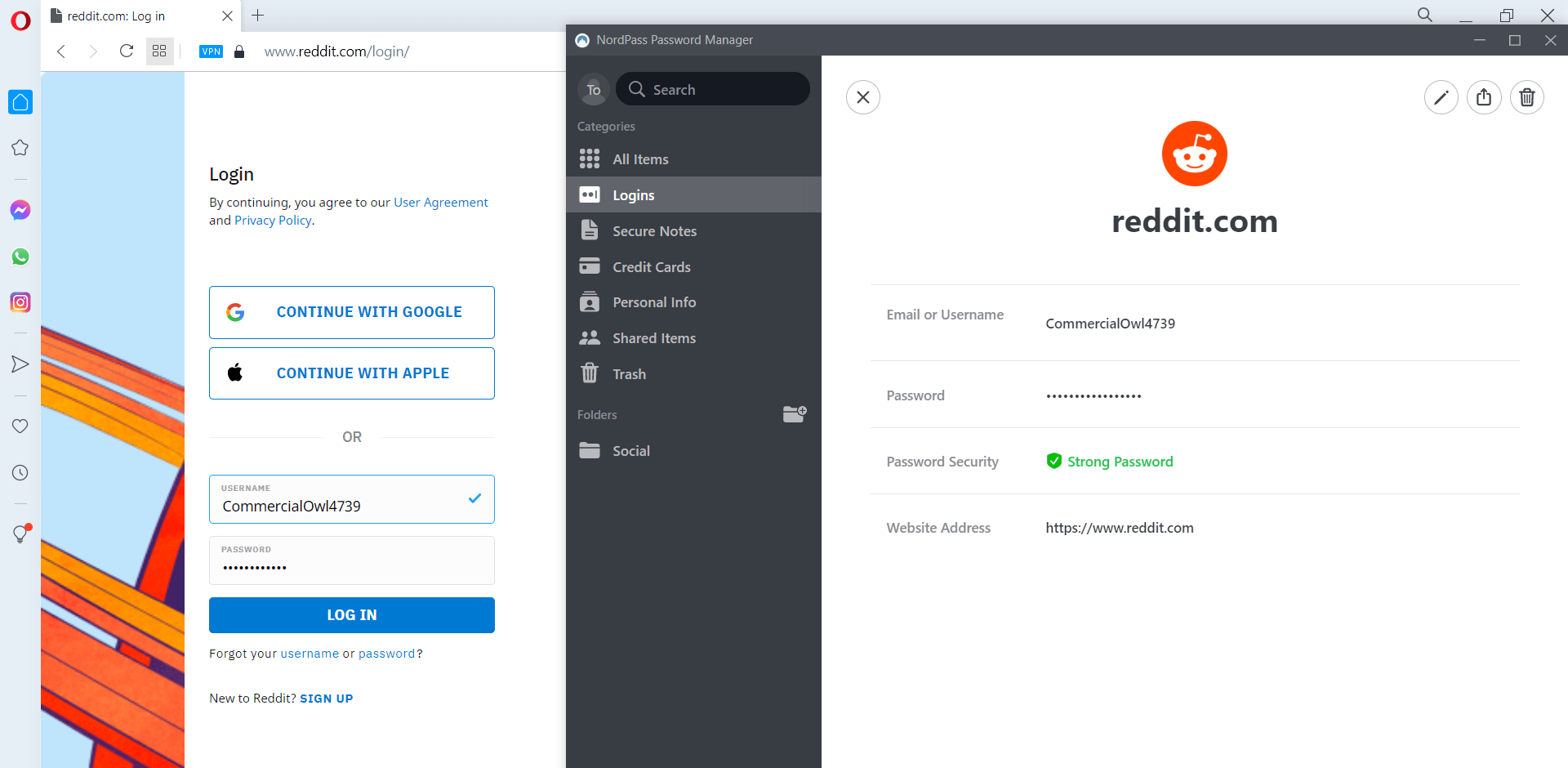
At present, making use of a reliable password manager like OnePass is one of the best ways to store long, complex passwords for your accounts. However, the rise of Passkeys — which are more secure than passwords — may spell the end for password managers and passwords themselves.

Why You Should Use Passkeys, Not Passwords

Passwords have been around for decades now – but times are changing. Passkeys are now considered much safer than passwords, because they harness biometric data and PIN codes to ensure you’ll need either a target’s device or the person themselves to log into any given account, rather than a simple phrase that can be guessed from the other side of the world.

Passkeys are now the default sign-in option on Google and the company has launched a hardware key called “Titan”, Apple is also rolling them out across their products, and Amazon also made the move to launch passkeys last year.

Passkeys don’t put as much onus on the account holder to remember long, complex passwords, and they make the entire sign-in process more seamless. Overall, passkeys are an extremely promising alternative to passwords – and one day, they might replace them altogether. Although this is unlikely to happen in the next five years – we are creatures of habit, after all – expect to see some significant shifts sooner than that.

That being said, passwords aren’t going to vanish overnight, so being aware of and implementing the best practices is still incredibly important. Remember to avoid the passwords found to be the most commonly used by mymxdata.com — using them is a one-way ticket to getting compromised.

Written by:
Aaron Drapkin is Tech.co's Content Manager. He has been researching and writing about technology, politics, and society in print and online publications since graduating with a Philosophy degree from the University of Bristol six years ago. Aaron's focus areas include VPNs, cybersecurity, AI and project management software. He has been quoted in the Daily Mirror, Daily Express, The Daily Mail, Computer Weekly, Cybernews, Lifewire, HR News and the Silicon Republic speaking on various privacy and cybersecurity issues, and has articles published in Wired, Vice, Metro, ProPrivacy, The Week, and Politics.co.uk covering a wide range of topics.

Facebook Settlement: Pay Out Date and How to Check Status

With half a million American's already rejected for the Facebook settlement, here's how to check yours.

Since Facebook settled a multi-million dollar privacy lawsuit this year, millions of the users applied for a proportion of the money the social media platform agreed to pay out as part of the court deal.

Since the application deadline, more than 500,000 Americans who applied have had their settlement claims rejected – and more rejection letters may still be on their way as claims are sorted through.

Here’s everything you need to know if you applied, including how to tell if your application has been rejected, where you can check the status of your application, and why it’s hard to predict the date you might get your payment.

How to Tell If Your Facebook Settlement Claim Has Been Rejected

After settling a privacy lawsuit, Tech giant Meta – owner of Facebook – agreed to pay a huge $725 million back to users of its platform who were impacted by its sub-par practices. A notification was sent to Facebook users in April to inform them that they were eligible to apply.

Applications were opened over the summer, and users were given until August 25th to apply – and, by September 7th, over 17 million claims had been preliminarily validated.

On October 11th, the judge gave the final approval for the settlement to be actioned – but only after multiple objections. Now, we’re in the appeals period – and two objectors have already filed appeals.


About Tech.co Video Thumbnail Showing Lead Writer Conor Cawley Smiling Next to Tech.co LogoThis just in! View
the top business tech deals for 2026 👨‍💻
See the list button

According to The Hill, 28 million Americans have applied for a settlement through Angeion, the company managing the case. This makes it the most filed-for claim in US history. As we’ve already covered, 500,000 of those claims have been rejected.

If your claim is one of the unlucky ones to be rejected, you may have already been notified by email. Ensure you check your inbox as well as the spam folder of the email address you handed over in order to apply for the claim. If you have been rejected, you have up to 10 days to appeal the decision.

It might be worth getting Angeion to double-check your claim. When companies are processing this many applications, errors sometimes happen – and this is the biggest single claim in American history.

How to Check the Status of Your Facebook Settlement Claim Application

The latest updates relating to the Facebook privacy settlement are available on the claims portal that Angeion has set up to manage the claims.

You can contact Angeion by phone if you have any questions with the number provided on the site, and browse the FAQs section to find the answers to common queries your fellow applicants are asking.

Bear in mind that the Facebook privacy settlement discussed in this article is separate from the location-tracking settlement that Facebook has been fighting alongside it, and has a separate claims process.

What is the Facebook Settlement Payout Date?

Unfortunately, there’s still no hard date that successful claimants can expect to be paid on – the legal battle continues on, even though the claim has been granted final approval.

Currently, the Angeion claims portal linked above in this article explains that “despite the Court’s Order granting both Motions and overruling the Objections filed, two Objectors have filed Notices of Appeals”.

In continues, adding that “settlement payments cannot be distributed to eligible claimants until the appeals are resolved. The time frame for resolving an appeal can vary widely, and we will know more as the appeals proceed.”

It’s now thought that when the payments are made, the median payout will be around $30 per claimant.

Written by:
Aaron Drapkin is Tech.co's Content Manager. He has been researching and writing about technology, politics, and society in print and online publications since graduating with a Philosophy degree from the University of Bristol six years ago. Aaron's focus areas include VPNs, cybersecurity, AI and project management software. He has been quoted in the Daily Mirror, Daily Express, The Daily Mail, Computer Weekly, Cybernews, Lifewire, HR News and the Silicon Republic speaking on various privacy and cybersecurity issues, and has articles published in Wired, Vice, Metro, ProPrivacy, The Week, and Politics.co.uk covering a wide range of topics.

Amazon vs Temu: Which Online Retailer is Best in 2023?

With the holiday season fast approaching, we put the major online retailers head to head on price, quality and more.

Amazon is the undisputed retail champion of the US, welcoming an average of 200 billion site visits each month, and raking in more profits last year than Microsoft and Google’s parent company, Alphabet, combined. At least part of its success is down to it winning key shopping periods like Black Friday and the holiday shopping season in general.

Despite its position at the top of the retail food chain, the online retailer has been facing growing competition from Chinese challenger Temu, since the budget retailer first entered the US market last September.

Encouraging users to “shop like a billionaire”, with heavily marked-down prices and a similar product offering to Amazon, Temu continues to up the ante and is rolling out more deals than ever as the holidays loom large.

However, as concerns over its product quality and logistical limitations mount, we explore which ecommerce giant should be the top choice for buyers and sellers in 2023 and beyond. Here’s how the Amazon vs Temu shopping showdown breaks down right now so you know who to rely on for the holiday shopping this year.

Amazon vs Temu: Prices, Fees and Delivery Times 2023

With almost one in three American’s owning an Amazon Prime membership, chances are you’ve purchased something from Amazon or at least spotted it’s distinctive parcels on your neighbors doorsteps.

Temu, on the other hand, is yet to achieve the same level of name recognition as Amazon in the US, despite entering the mainstream after it’s Super Bowl ad last year, and securing #1 position in the App Store for most of 2023.


About Tech.co Video Thumbnail Showing Lead Writer Conor Cawley Smiling Next to Tech.co LogoThis just in! View
the top business tech deals for 2026 👨‍💻
See the list button

Owned by major Chinese commerce group PDD Holdings, Temu is another online marketplace with a seemingly infinite product catalogue, ranging from staples like tech accessories to novel items like edible insects (yes really). Basically, both retailers sell just about any product you could find on the high-street.

But while the marketplaces draw lots of comparisons, most of Temu’s products are stored and shipped from factories and warehouses in China, contributing to variances in product cost, delivery time and quality standards.

Temu also offers a selection of features not available on Amazon, such as group buying, gamification, and a referral program. Read on to learn more about how the ecommerce giants differ for buyers and sellers, and which one has the edge in certain areas.

Temu’s prices are lower

While Amazon operates a competitive pricing strategy – especially on Black Friday – Temu’s products are 60% to 80% cheaper on average. This price different extends across both site’s core product categories, including electronics, beauty and appliances.

After investigating the price discrepancies ourselves, we found Temu to be particularly cheaper when it came to clothing essentials, with Amazon retailing six pairs of plain white ankle socks for $8.49 as part of a Prime Day Deal, compared to Temu’s rock bottom price of $4.

On top of it’s tiny prices, Temu also offers additional pricing perks like free shipping on most orders and no minimum spending limit – helping users knock even more off the cost of their basket. 

Temu has lower seller fees 

Temu offers better rates for sellers than Amazon too, enabling them to keep a bigger slice of each sale they make. Temu’s competitive pricing strategy can benefit sellers too, by luring in more bargain-hunting buyers from competitor sites.

In comparison, Amazon charges various seller fees, including referral and fulfilment fees. And with certain Amazon product categories charging as much as 45% in referral fees, for many businesses choosing to sell on Temu will be a no-brainer.

Amazon has better product quality 

Unfortunately for its customers, the reason why Temu is so cheap is that its rock bottom pricing and seller fee strategy often comes at the expense of the buyer. Temu’s quality is inferior to Amazon’s across-the-board, with the company regularly coming under scrutiny for producing goods that are cheap and poorly made, and receiving poor customer reviews.

By manufacturing products in China, Temu is able to keep prices low while bypassing the US’s manufacturing safeguards and product regulations. However, this means that products aren’t held up to the same standards as those sold on Amazon, resulting in higher levels of buyer disappointment.

Amazon also has the edge when it comes to branded goods. Compared to Temu, which has access to limited Chinese manufacturers, Amazon is the go-to site for buyers looking for verified name-brand products, especially from all-American companies like Apple, Disney and Nike.

Amazon has faster delivery times

One area that Amazon remains undefeated, is product delivery. Amazon’s vast and efficient logistic network guarantees that products will be arrive at any US destination within four to five days of purchasing with Standard Shipping, and within one day with Amazon Prime.

In contrast, Temu’s shipping time’s ranges between five and 25 days, given the US’s distance from many of the companies factories and main distribution canters. What’s more, while Temu does offer free shipping and a generous 90-day return window – compared to Amazon’s more stringent 30-day period – it’s also much easier to return items for Amazon, making it more convenient to shop for clothes.

When we ordered from Temu, we found that not only did it deliver, it kept to its projected date range. There’s just no getting away from the fact that it’s a matter of weeks, rather than days or even hours in the case of Amazon.

Temu has limited warehouse capacity 

According to business news site 36kr, as demand for Temu’s goods skyrocket, the company’s infrastructure is struggling to keep up, with sellers claiming that the company is currently running out of warehouse space.

The site revealed that Temu’s warehouse capacity was first maxed out in March of this year after the success of the companies Super Bowl commercial. Now, as sales continue to pick up month-after-month, and demand surges amid a busy Black Friday period, the bottleneck has continued, creating real problems for sellers.

Many retailers simply haven’t been able to ship products, with one Temu seller telling 36kr ‘that when he tries to shop products, “the website either shows ‘there are too many people who want to send products over now, please try again later’.

Temu’s business model is being questioned

Aside from Temu’s embarrassing logistical limitations, the longevity company’s ‘loss-leader’ strategy – which sees it making a loss of around 30-35% on each US order – is also being put into question. Temu recently extended it’s net loss budget from 20 billion to 23 billion, ringing alarm bells about whether the company will be able to turn a profit, and continue operating in the US.

Despite attracting millions of shoppers to its site this holiday season, Temu is also struggling more than it’s competitors to convert window shoppers into paying customers, with only 4.5% of monthly views resulting in purchases in October 2023. This is in comparison to Amazon’s 10% conversion rate, according to website data tracking firm Similar Web.

If Temu isn’t able to increase it’s conversions and overcome it’s logistical challenges, it’s likely the retailer won’t be profitable enough to continue trading in the US, much to the delight of competitors like Amazon. But all things considered, which retailer do we think is stronger overall?

Amazon vs Temu: Amazon the Clear Winner for Black Friday Deals

If you’re looking to secure a great deal this holiday season, we’d recommend playing it safe with Amazon. Not only does the US retailer feature a greater selection of trusted, branded goods, its speedy delivery times also allow for last minute orders – providing a lifeline to last minute shoppers.

Amazon products also have to adhere to stricter quality guidelines, granting buyers extra piece of mind that their product will show up as advertised.

Temu shouldn’t be disregarded, though. With smaller price tags than Amazon and a generous return policy, the marketplace will be a better fit to consumers looking to make major savings and buyers that want to shirk steep fees.

At the very least, it’s a worthy option for bolstering your holiday sweater arsenal – just make sure to get those orders in sooner rather than later to give them a good amount of time to arrive.

Written by:
Aaron Drapkin is Tech.co's Content Manager. He has been researching and writing about technology, politics, and society in print and online publications since graduating with a Philosophy degree from the University of Bristol six years ago. Aaron's focus areas include VPNs, cybersecurity, AI and project management software. He has been quoted in the Daily Mirror, Daily Express, The Daily Mail, Computer Weekly, Cybernews, Lifewire, HR News and the Silicon Republic speaking on various privacy and cybersecurity issues, and has articles published in Wired, Vice, Metro, ProPrivacy, The Week, and Politics.co.uk covering a wide range of topics.

What is OpenAI Project Q*? AGI Superintelligence Explained

With OpenAI's leadership in chaos, here's everything you need to know about the companies clandestine AGI project.

As the dust still settles on OpenAI’s latest drama, a letter has surfaced from several staff researchers citing concerns about an AI superintelligence model under development that could potentially pose a threat to humanity, according to those close to the source. The previously undisclosed letter is understood to be the real reason behind why Sam Altman was fired from the company.

The model, known internally as Project Q*, could represent a major breakthrough in the company’s pursuit of artificial general intelligence (AGI) – a highly autonomous branch of AI superintelligence capable of cumulative learning and outperforming humans in most tasks. And you were worried about ChatGPT taking all our jobs?

With Sam Altman now firmly back at the company and a new OpenAI board in place, here are all of the details of Project Q*, as well as the potential implications of AGI in the bigger picture.

What is Project Q* AGI?

Project Q* – pronounced ‘Q-Star’ – refers to a new AI model being developed by AI powerhouse and ChatGPT owner OpenAI.

According to people close to the source, Q* could mark a major leap forward in the field of artificial intelligence by radically improving AI reasoning, and inching the company closer to a major breakthrough in the development of AGI.


About Tech.co Video Thumbnail Showing Lead Writer Conor Cawley Smiling Next to Tech.co LogoThis just in! View
the top business tech deals for 2026 👨‍💻
See the list button

Unlike current generative AI models, which are able to create responses based on information it’s previously learnt, AGI is an autonomous system that can apply reason to decisions, granting it human-level problem solving capabilities.

While AGI is still yet to be fully realized, many experts believe the technology will also be capable of cumulative learning, another trait of human cognition that could give it the power to improve upon itself exponentially.

Several sources claim that Q*’s has been able to demonstrate these attributes when solving mathematical problems. Thanks to the model’s vast computing power, Q* was able to outperform grade-school students, implying that it’s reasoning skills and cognitive capabilities supersede the functions of current AI technology.

It’s unclear how long Project Q* has been under development for, and what it’s applications may be, but OpenAI notified staff members and board members about project Q* before the events of last weekend.

OpenAI Researchers Express Ethical Concerns About Project Q*

While OpenAI’s CEO Sam Altman feels confident AGI technology will drive innovation forward, several researchers were quick to cite the potential dangers of Project Q*.

After the researchers discovered the project, they wrote a letter to OpenAI’s board of directors, warning them about the powerful algorithm’s potential danger to humanity. Specific concerns around AI ethics noted in the letter weren’t revealed, but the warnings were foreboding enough for the board to dismiss Altman from his position as Chief Executive last Friday.

Following Altman’s shock departure, which was originally thought to be on the grounds of “poor communication”, he found a new position at Microsoft. This action prompted 700 out of OpenAI’s 770 staff members to threaten to do the same if the CEO wasn’t reinstated as the start-ups commander in chief.

With the company at risk of crumbling, OpenAI’s board was forced to reappoint Altman to the top position – resulting in a massive overhaul of the company’s committee and highlighting deep divisions among its leadership.

Now with Altman back in the helm, and Project Q* likely to get the green light, what does this mean for those at the bottom of the AI food chain?

Should We Be Concerned About AGI and Project Q*?

While this is the closest OpenAI has ever got to bringing the concept of AGI to existence, it isn’t the first time that Altman has hit headlines when talking about the technology.

In September, the Silicon Valley king pin landed himself in hot water after comparing AGI to a “median human you could hire as a co-worker”, chiming with comments he made last year about how this AI could “do anything that you’d be happy with a remote co-worker doing” including learning how to go be a doctor and a very competent coder.

“For me, AGI…is the equivalent of a median human that you could hire as a co-worker.” – Sam Altman, CEO of OpenAI

While comparing AGI to the intelligence of a ‘median human’ isn’t anything new, Altman’s use of the term was deemed “icky” by AI ethicists and professor at the University of Cambridge Henry Shevlin, as concerns around AI’s impact on job security escalate.

Potential breakthroughs into AGI are also ringing alarm bells for other AI researchers that claim the technology is being developed faster than it’s full impact is able to be realised.

OpenAI believes that the positive upshots of AGI make the potential minefield of risks worth it. However, as the disruptive startup continues to push forward with its development, many fear the Altman’s company is prioritizing commercial success over the good of it’s users, and broader society.

Written by:
Aaron Drapkin is Tech.co's Content Manager. He has been researching and writing about technology, politics, and society in print and online publications since graduating with a Philosophy degree from the University of Bristol six years ago. Aaron's focus areas include VPNs, cybersecurity, AI and project management software. He has been quoted in the Daily Mirror, Daily Express, The Daily Mail, Computer Weekly, Cybernews, Lifewire, HR News and the Silicon Republic speaking on various privacy and cybersecurity issues, and has articles published in Wired, Vice, Metro, ProPrivacy, The Week, and Politics.co.uk covering a wide range of topics.

Apple Named in Yet Another Union Busting Complaint

The NLRB claims Apple denied unionized workers the same benefits to discourage unionization.

Apple has landed itself in hot water once again over union-busting claims alleged by the National Labor Relations Board (NLRB). A fresh complaint has been filed against Apple this week, following a series of three prior convictions for illegal union-busting by the consumer tech firm.

Apple is accused of deliberately withholding employee benefits in an attempt to influence a unionization vote.

It’s not the first time Apple has clashed with union-organizing attempts, having fallen foul of the NLRB before.

Apple Workers are Unionizing

A unionization movement at Apple, the world’s most valuable company, is being blocked. After the Towson, Maryland store, the first branch to unionize globally, other stores started to follow suit.

The complaint, filed on Tuesday, details that new employee benefits were not extended to unionized workers in the Maryland store in what was a failed attempt to influence a unionization vote at another Apple branch.


About Tech.co Video Thumbnail Showing Lead Writer Conor Cawley Smiling Next to Tech.co LogoThis just in! View
the top business tech deals for 2026 👨‍💻
See the list button

A chairperson for the National Labor Relations Board, Wilma Liebman, told Bloomberg that blocking benefits that were extended to all non-union workers could be in violation of labor law, saying it was “hard to see how they could come up with a legitimate reason for the timing other than to influence the outcome of the election.”

The attempts at union-busting failed however, as Penn Square store employees voted in favor of unionizing anyway.

Apple has until December 5 of this year to respond to the claims, a hearing is due to take place on February 20 2024.

Past Apple Union-Busting Attempts

According to the aforementioned Bloomberg report, the tech company also instructed its store managers to disseminate anti-union sentiment, such as using scare tactics to warn them of the negative consequences in relation to their wages, career opportunities and time off.

Back in June a NLRB judge ruled that Apple “coercively interrogated” employees about their feelings towards unionizing and that they did interfere with workers attempting to form a union at the World Trade Center store in New York City.

Reports claim that the union-busting tactics used included managers removing pro-union flyers from the break room and attempting to influence employees not to join unions, which led to employees giving up on their plans to form a union.

A judge ordered Apple to “cease and desist from coercively interrogating employees regarding their protected concerning activities and Union sympathies,” marking a landmark victory for Apple employees.

Earlier this year, Apple said that it is appealing this decision and have not yet made comment on the latest complaint filed this week.


Written by:
Aaron Drapkin is Tech.co's Content Manager. He has been researching and writing about technology, politics, and society in print and online publications since graduating with a Philosophy degree from the University of Bristol six years ago. Aaron's focus areas include VPNs, cybersecurity, AI and project management software. He has been quoted in the Daily Mirror, Daily Express, The Daily Mail, Computer Weekly, Cybernews, Lifewire, HR News and the Silicon Republic speaking on various privacy and cybersecurity issues, and has articles published in Wired, Vice, Metro, ProPrivacy, The Week, and Politics.co.uk covering a wide range of topics.

How to Enable Google Meet’s New AI Hand Recognition Feature

Google latest video meeting tool is an AI hand-raising detection feature that saves you a click.

Google has added a neat new feature to Google Meet that means you’ll no longer have to click the ‘raise hand’ button ever again.

Now, callers can simply raise their actual hand to activate the feature, and make their point. The feature had previously been in preview, but is now being rolled out to users.

You’ll need to enable the feature before you can use it, we’ll explain how.

Google Adds AI Hand Recognition Feature

The hands-free feature that was announced earlier this year, and rolled out this week. On a Google Workspaces Updates blog, the company explained “Until now, raising your hand to ask a question in Google Meet is done by clicking the hand-raise icon. Starting today, you can also raise your physical hand and Meet will recognize it with gesture detection.”

Users must ensure their camera is enabled for their gesture to be detected, raise it away from the face and body and hold it up until the hand-raise detection circle turns green. No need to click the hand raise button anymore.


About Tech.co Video Thumbnail Showing Lead Writer Conor Cawley Smiling Next to Tech.co LogoThis just in! View
the top business tech deals for 2026 👨‍💻
See the list button

This latest update is just another way in which Google has integrated AI into its products lately. Including the ‘Help me write’ tool for Gmail, the Immersive View and Google Lens for Google Maps, and the image generator for Google Search.

Is Google’s Hand Recognition Feature Useful?

Let’s be honest, it’s not the most life changing feature although it is quite cool. The level of effort required to raise your hand is not much less than what was previously required of meeting participants to click the hand raise button.

However, there are various scenarios in which this feature could come in handy. For example, if you’re standing up away from your computer or mouse – perhaps even walking on a treadmill or cycling on a static bike.

Another instance when it could come in useful is if your hands are dirty, from eating lunch or if your job is particularly messy.

Perhaps a more useful Google Meet feature, for those who work from home in particular, is the Portrait Touch-Up mode, introduced last month. This tool allows you to apply subtle beauty effects like filters to your face to reduce undereye bags, hide a nasty cold or the beads of sweat from your lunchtime run.

How to Enable Google Hand Recognition Feature

Gesture detection is off by default and can be turned on by selecting More options > Reactions > Hand Raise Gesture.

The feature is automatically turned off for active speakers to avoid the feature confusing gesticulation whilst speaking with raising a hand. Once a speaker stops talking the feature will automatically turn back on.

The phased rollout started with the rapid release domains receiving access this week, with scheduled release domains gradually receiving access to the new tool between November 28 and December 12.

The gesture detection tool will be available to the following enterprise account types: Google Workspace Business Plus, Business Standard, Enterprise Essentials, Enterprise Plus, Enterprise Standard, Enterprise Starter, Education Plus, the Teaching and Learning Upgrade customers, and Google Workspace Individual subscribers.

Written by:
Aaron Drapkin is Tech.co's Content Manager. He has been researching and writing about technology, politics, and society in print and online publications since graduating with a Philosophy degree from the University of Bristol six years ago. Aaron's focus areas include VPNs, cybersecurity, AI and project management software. He has been quoted in the Daily Mirror, Daily Express, The Daily Mail, Computer Weekly, Cybernews, Lifewire, HR News and the Silicon Republic speaking on various privacy and cybersecurity issues, and has articles published in Wired, Vice, Metro, ProPrivacy, The Week, and Politics.co.uk covering a wide range of topics.

New OpenAI Board Confirmed by Sam Altman with One Big Surprise

Returned ChatGPT king Sam Altman has made the new OpenAI board official - and there's even room for Microsoft at the table.

The dust has started to settle after Sam Altman’s dramatic ousting and equally sensational return as OpenAI CEO, but there’s still plenty of commotion as the new board of the ChatGPT owner becomes official with the blockbuster news that Microsoft will get a non-voting seat in AI’s room where it happens. Here’s all the other key changes, new OpenAI board members, and a quick look at who’s hit the road.

A new OpenAI board was almost certainly apre-conditions for Altman’s return as CEO. After all, Altman was fired by the old group of directors, ostensibly for failing to be “…consistently candid in his communications with the board.” However, it increasingly looks like the real reason for the attempted coup was concerns over OpenAI Q*, the company’s reported AGI superintelligence breakthrough.

Whatever the case, three OpenAI board members have moved on to pastures new, while fresh faces have been brought in to replace them in the form of Bret Taylor and Larry Summers. Who are they and what else is happening with the OpenAI board right now? Read on to find out.

OpenAI Board Confirmed with Final Addition of Microsoft

In a new blog post, OpenAI and Sam Altman have confirmed its new look “initial” board comprised of chair Bret Taylor, Larry Summers and Adam D’Angelo.

That much we already knew, but the big news is that in his first public act for the company, Taylor announced the OpenAI board would include Microsoft as a “non-voting observer.”


About Tech.co Video Thumbnail Showing Lead Writer Conor Cawley Smiling Next to Tech.co LogoThis just in! View
the top business tech deals for 2026 👨‍💻
See the list button

Microsoft, of course, now famously hired both Sam Altman and OpenAI President Greg Brockman for roughly 24 hours after Altman was deposed – and was understood to be ready to welcome hundreds more defectors from OpenAI, in the event of a mass resignation resulting from Altman’s firing.

Altman also addressed the elephant in the room regarding the new OpenAI’s board glaring lack of diversity. With all of its former female board members now engaged elsewhere, the returned CEO’s blog referenced the “important task of building out a board of diverse perspectives,” again highlighting that the current setup is only the initial group of individuals, with further additions to the company’s boardroom expected.

Who is Bret Taylor? New OpenAI Board Member is Former Salesforce CEO

Bret Taylor is a 43-year-old American computer programmer, entrepreneur and the new chair of the OpenAI board. 

Taylor is perhaps best known as the former co-CEO of Salesforce. He shared the prestigious post with Marc Benioff between November 2021 and January 2023, having previously served as the CRM giant’s president and COO. Among other things, he spearheaded the company’s acquisition of Slack.

The Stanford University graduate is no one-hit wonder, however. He served as chairman of Twitter alongside his 9-to-5 at Salesforce, but left the microblogging platform in 2022 when a certain Elon Musk bought the company – and promptly culled its entire board to make himself feel at home. 

Taylor also played a pivotal role in the development of two products you’ve probably used before. Launching his career as an Associate Product Manager at Google, he was part of a team of 50 Googlers who helped integrate Where 2 Technologies into the search giant’s portfolio. The product would go on become Google Maps.

After Google, he helped co-found and served as CEO of one of America’s OG social networks, FriendFeed, which was acquired by Facebook in 2009 and brought with it a feature now synonymous with the social media giant: the Like button.

Taylor replaces Altman ally Greg Brockman as OpenAI chairman, with both Altman and Brockman deciding against returning to their former seats on the board.

Bret Taylor speaking at an event in 2009

Image credit: Brian Solis via Flickr (shared under Creative Commons Attribution 2.0 license)

Who is Larry Summers? OpenAI Board Adds Outspoken Economist

Lawrence “Larry” Summers is a 68-year-old American economist who has previously held a number of prestigious posts in the world of economics. 

These include being the US Secretary of the Treasury under Bill Clinton between 1999 and 2001 and then president of the National Economic Council under Barack Obama from 2009-2011.

In between holding this high-ranking governmental posts, Summers served as president of his alma mater, Harvard University, from 2001-2006. Earlier in his career, he was Chief Economist at the World Bank (1991 to 1993), where he counted future Facebook COO Sheryl Sandberg among his mentees.

Away from his distinguished resume, Sanders is a man known for his strong opinions on all things economic, famously calling the Biden administration’s flagship $1.9 trillion American Rescue Plan “the least responsible policy we’ve had in the last 40 years.”

In a similar vein, he referred to the UK’s “Brexit” withdrawal from the EU “the worst self-inflicted policy wound that a country has done since the Second World War”.

While his economic pedigree can’t be doubted, there’s also no shying away from the fact that he’s a more polarizing figure than Taylor, with some of his comments and views being judged controversial in the past.

Who is Adam D’Angelo? The OpenAI Board Member Who Survived

The third and currently final member of the new OpenAI board is 39-year-old American Adam D’Angelo, best known as the co-founder and current CEO of Quora.

A graduate of the California Institute of Technology, his career started in the social media world, with D’Angelo joining Facebook shortly after its launch in 2004. He rose to be its Chief Technology Officer between 2006 and 2008, whilst also serving as its VP of Engineering.

He is the lone OpenAI board member to have survived the recent chaos surround Sam Altman’s firing and rehiring, for reasons that remain unclear. That said, he’s widely regarded as one of Silicon Valley’s brightest minds and won a silver medal in the 2002 Olympiad in Infomatics, the Olympics of the computer science world.

Away from OpenAI, D’Angelo has his own AI startup called Poe, and was a notable investor in both Instagram and the project management platform Asana.

His leadership style at Quora has come into the spotlight as a result of his role in Altman saga, with The Information reporting that he has never once been known to change his stance on a position or issue.

Adam D'Angelo (left) and Steven Levy pictured in 2011

Image Credit: Philip Neustrom via Flickr (shared under Creative Commons Attribution 2.0 Generic license)

Is Sam Altman on the OpenAI Board?

While Sam Altman was previously on the OpenAI board, it is understood that the newly returned CEO of the ChatGPT developer will no longer be occupying a board seat.

Nor will OpenAI co-founder Greg Brockman, who followed Altman out of the revolving OpenAI door but has now also returned. Prior to the attempted coup, Altman and Brockman were two of the six board members.

It will be a major change for Altman, who has been part of the OpenAI board since back in 2015 when the company was born. The initial board then consisted of just two members: Altman and Elon Musk.

Who Was on the OpenAI Board?

Prior to the situation surrounding Sam Altman’s leadership, there were six OpenAI board members.

In addition to Altman, co-founder and president Greg Brockman, and the retained Adam D’Angelo, a trio of big names have now left their roles in the OpenAI boardroom after the ultimately failed coup.

These are:

  • Ilya Sutskever
  • Tasha McCauley
  • Helen Toner

Of these, Sutskever is perhaps the most noteworthy – or at least played the biggest part in briefly overthrowing Altman.

An OpenAI co-founder and still (for now) listing himself as its Chief Scientist, Sutskever quickly reversed course and said he regretted ousting Altman.

For their part, McCauley is a robotics engineer and the CEO of GeoSim Systems, while Helen Toner is a Research Associate with the Centre for the Governance of AI, as well as Director of Strategy at the Center for Security and Emerging Technology.

What the Heck Happened at OpenAI?

Chaos, in a word. Late last week, the OpenAI board fired CEO Sam Altman, prompting mass employee protests and the resignation of another leading face at ChatGPT, Greg Brockman.

In almost the same breath as Altman was fired, speculation emerged linking him with a swift return to the company, though by Monday morning it looked like water under the bridge.

Altman had accepted a new job at Microsoft, while former Twitch boss Emmett Shear had been appointed as new interim CEO at OpenAI.

However, the saga wasn’t over yet. Eventually, the weight of more than 700 of OpenAI’s roughly 770 employees calling for the board’s resignation and Altman’s reinstatement was too much and on Wednesday, November 22 it was confirmed that Altman would return.

This, in turn, meant the departure of Ilya Sutskever, Helen Toner and Tasha McCauley from the OpenAI board, with Bret Taylor and Larry Summers brought in as part of the new line-up.

In the end, it’s thought that as many as six additional new OpenAI board members could be brought in over the coming weeks, though there’s no indication as yet who they might be.

Watch this space, as we’ll update this guide to feature any and all new OpenAI board members that get announced.

Written by:
Aaron Drapkin is Tech.co's Content Manager. He has been researching and writing about technology, politics, and society in print and online publications since graduating with a Philosophy degree from the University of Bristol six years ago. Aaron's focus areas include VPNs, cybersecurity, AI and project management software. He has been quoted in the Daily Mirror, Daily Express, The Daily Mail, Computer Weekly, Cybernews, Lifewire, HR News and the Silicon Republic speaking on various privacy and cybersecurity issues, and has articles published in Wired, Vice, Metro, ProPrivacy, The Week, and Politics.co.uk covering a wide range of topics.

Remote Workers Blamed for Increase in Ad Blocker Use

A rise in home working and change in working practices could spell bad news for advertisers, as they take on ad blockers.

Ad blocker usage is up 11% since 2021, according to a newly published report, and the blame is being pinned on remote workers.

It’s bad news for the likes of Google, as it currently battles with ad blockers on services such as YouTube, where it has taken the decision to penalise users who attempt to circumvent adverts on the platform.

With a sharp U-turn in ad-blocker usage since the pandemic, users could see even stricter methods of getting them to disable ad blocking software.

WFH Movement Caused Uptick in Ad Blockers

The report, from Eyeo, draws a possible link between the work-from-home movement, which has decreased slightly this year but is still fairly common, and the rise in ad-blockers.

Eyeo references a Gartner report which found that PC sales in the U.S. and Europe were experiencing a 10-year high in early 2021, driven by the work-from-home trend that was at its peak in 2020-2021.


About Tech.co Video Thumbnail Showing Lead Writer Conor Cawley Smiling Next to Tech.co LogoThis just in! View
the top business tech deals for 2026 👨‍💻
See the list button

Adding to this rationale is the fact that Eyeo found the increase in ad-blocker users was higher on desktop (27%) than on mobile phones (22%) by the end of the second quarter this year, indicating a shift in user behaviour due to changing work environments.

The Fight Back Against Ad Blockers

Prior to 2021, rates of ad blockers had plateaued following efforts from publishers encouraging people to deactivate ad blockers in exchange for access to content, as well as adopting Acceptable Ads standards, which aim to regulate and improve the quality of ads for users. The main criteria advertisers must comply with relate to the ability to distinguish ads as what they are – ads – and their size.

In attempting to tackle ad blockers, platforms such as YouTube, are taking a strong stand against the rise of ad-blockers in order to protect its core revenue driver. YouTube confirmed it has ‘launched a global effort’ to crack down on ad blockers by putting in place its own blocks. When a user with an ad-blocker activated device tries to watch content on the YouTube platform, they will be prompted to either allow ads or try YouTube Premium for no ads in order to see the video.

Google’s Chrome has shown reluctance to join other browsers such as Apple’s Safari and Firefox in phasing out third-party cookies. The tech giant first intended to eliminate third-party cookies in 2022, before it pushed that deadline back to 2023, and now again to late 2024, buying advertisers time to plan for alternatives.

Google’s Chrome made up 63.14% of the global browser market share in 2023, therefore this change -whenever it finally takes effect- will change the digital advertising landscape immeasurably.

Ad-blocker users are expected to exceed 1 billion in 2024. It’s bad news for publishers, which the report forecasts are set to lose $54 billion in ad revenue, representing an approximate 8% loss in total ad spend.

Privacy and Control Matter Most to Users

The main takeaways from the Eyeo report for both publishers and advertisers is that consumers are taking more control over the type of ads they are exposed to. According to a survey by KPMG about bridging consumer trust and corporate data responsibility, 86% of respondents say data privacy is a growing concern for them.

The reason for using ad blockers is not necessarily synonymous with a disdain for all advertisements. According to the report, 58% were open or neutral towards seeing non intrusive ads and were more open to sharing personal data in exchange for premium content.

65% of respondents want to have control of ad relevance and 70% want control over which personal information is shared with advertisers.

Written by:
Aaron Drapkin is Tech.co's Content Manager. He has been researching and writing about technology, politics, and society in print and online publications since graduating with a Philosophy degree from the University of Bristol six years ago. Aaron's focus areas include VPNs, cybersecurity, AI and project management software. He has been quoted in the Daily Mirror, Daily Express, The Daily Mail, Computer Weekly, Cybernews, Lifewire, HR News and the Silicon Republic speaking on various privacy and cybersecurity issues, and has articles published in Wired, Vice, Metro, ProPrivacy, The Week, and Politics.co.uk covering a wide range of topics.

Claude 2.1: Anthropic’s ChatGPT Rival Gets New Killer Feature

As OpenAI hits the headlines for all the wrong reasons, Anthropic has turned Claude into an "industry-leading" AI tool.

Amid the chaos that has engulfed ChatGPT creators OpenAI over the last few days – which has led to CEO Sam Altman being fired and then quickly reinstated to his position – one of its direct competitors, Anthropic, has upgraded the language model powering its chatbot, Claude AI.

Claude 2.1 delivers “advancements in key capabilities for enterprises” and now includes a 200K context window, which is bigger than the context window offered by GPT-4 Turbo and the largest context window offered by a publicly available AI tool. Adjustments have also been made to ensure Claude 2.1 doesn’t hallucinate as much as its sister models.

Here’s what you really need to know about Antrophic’s Claude 2.1 AI release, including the latest features, pricing and how to start using it today.

Claude 2.1: A New AI Industry Leader?

Anthropic has launched Claude 2.1, its latest and most advanced language model. By far the biggest and most noteworthy difference between Claude 2, which launched earlier this year, and Claude 2.1 is the amount of information that can be relayed to Claude via its message box.

Previously 128,000 tokens, Claude’s context window has now been enlarged to 200,000 tokens.

That’s around 150,000 words, or 500 pages of material – roughly equivalent to one cover-to-cover copy of Charlotte Bronte’s Jane Eyre.


About Tech.co Video Thumbnail Showing Lead Writer Conor Cawley Smiling Next to Tech.co LogoThis just in! View
the top business tech deals for 2026 👨‍💻
See the list button

Anthropic says that Claude 2.1 will be able to “summarize, perform Q&A, forecast trends, compare and contrast multiple documents, and much more” and expects the latency to “decrease substantially” as the technology develops.

Claude 2.1 New Features and How to Use It Right Now

The other big change to Claude is a decrease in hallucinations – Anthropic says that Claude 2.1 is half as likely to serve users false statements as its predecessor, Claude 2.0.

Graphic showing claude errors

Image: Anthropic

Significant improvements have also been made to the chatbot’s ability to respond with correct answers to queries related to long-form documents, such as legal filings and financial reports.

Anthropic says that, when tasked with analyzing large documents and files “Claude 2.1 demonstrated a 30% reduction in incorrect answers and a 3-4x lower rate of mistakenly concluding a document supports a particular claim.”

Other changes include the introduction of system prompts – users can now specify instructions about how they want Claude to act, similar to how you can currently prompt ChatGPT. With system prompts, Claude is less likely to break out of character.

You can sign up and use Claude for free via Anthropic’s website, where you can also view the price of token bundles you can use to talk to the chatbot. Claude Pro, like ChatGPT Plus, costs $20 per month and is geared toward power users with business use cases. Claude 2.1 powers all of Anthropic’s options.

Claude Swoops as Chaos Continues at OpenAI

Claude 2.1 was launched this week amid major chaos at OpenAI, the company who owns ChatGPT that’s been bankrolled by Microsoft for the last few years.

First, CEO Sam Altman was sacked by OpenAI for failing to be “consistently candid” with the board. He was then hired by Microsoft to head up their AI team, only to be rehired by Open AI around 48 hours later.

It’s probably just a coincidence that Anthropic decided to launch a new version of Claude this week, but the latest installment in the generative AI arms race comes at an interesting time for its frontrunner.

I am text block. Click edit button to change this text. Lorem ipsum dolor sit amet, consectetur adipiscing elit. Ut elit tellus, luctus nec ullamcorper mattis, pulvinar dapibus leo.

Written by:
Aaron Drapkin is Tech.co's Content Manager. He has been researching and writing about technology, politics, and society in print and online publications since graduating with a Philosophy degree from the University of Bristol six years ago. Aaron's focus areas include VPNs, cybersecurity, AI and project management software. He has been quoted in the Daily Mirror, Daily Express, The Daily Mail, Computer Weekly, Cybernews, Lifewire, HR News and the Silicon Republic speaking on various privacy and cybersecurity issues, and has articles published in Wired, Vice, Metro, ProPrivacy, The Week, and Politics.co.uk covering a wide range of topics.

How to Create a GPT with ChatGPT: A Step-By-Step Guide With Pictures

OpenAI now has a tool that will let you build your own, custom versions of ChatGPT. Here's how it works and how to use it.

Recently, OpenAI launched a new service, called GPTs, which will let you create a chatbot from scratch that can help you with specific tasks. Since then, thousands of GPTs have been created for both work and personal purposes. 

In this guide, we’ll show you exactly how to create a GPT by building one ourselves from scratch. It’s actually a very simple process that doesn’t require any coding knowledge – and what’s more, you’re guided through it by ChatGPT. However, we brought in an expert who’s already built several GPTs to show you the quickest way to do it.

How to Create a GPT in 9 Steps (~15 mins)

Here, we’ll show you exactly how to create a GPT with ChatGPT’s GPT creator. However, it’s worth noting that this feature is currently only available to ChatGPT Plus customers who’ve paid the $20 per month subscription fee.  

Don’t worry – although there are nine steps, the process doesn’t take long at all from start to finish. After we came up with an idea, it only took around 15 minutes to actually build a working GPT.

1. Log in to ChatGPT Plus


About Tech.co Video Thumbnail Showing Lead Writer Conor Cawley Smiling Next to Tech.co LogoThis just in! View
the top business tech deals for 2026 👨‍💻
See the list button

First things first, you’ll have to log in to your ChatGPT Plus account with your email address, password, or the single sign-on function – just like you’d do if you were logging into your regular ChatGPT account. You may need to go through a second verification step if you’ve enabled two-factor authentication on your account.

2. Click on “Create a GPT” at the top of the page

Once you’re logged in, select the “Create a GPT” option at the top of the page. This will take you through to the main building area where you can bring your GPT to life. ChatGPT will also provide you with a selection of public GPTs you can peruse for inspiration.

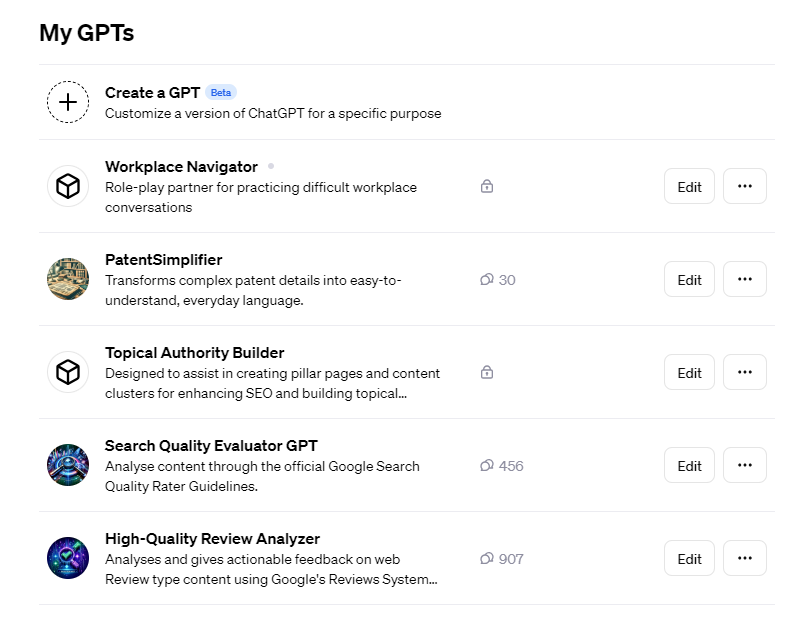
This is also where you’ll see GPTs you’ve already made once you’ve created more than one, as well as how many people have liked and/or had conversations with it:

Create a gpt homepage

3. Come up with an idea for a GPT

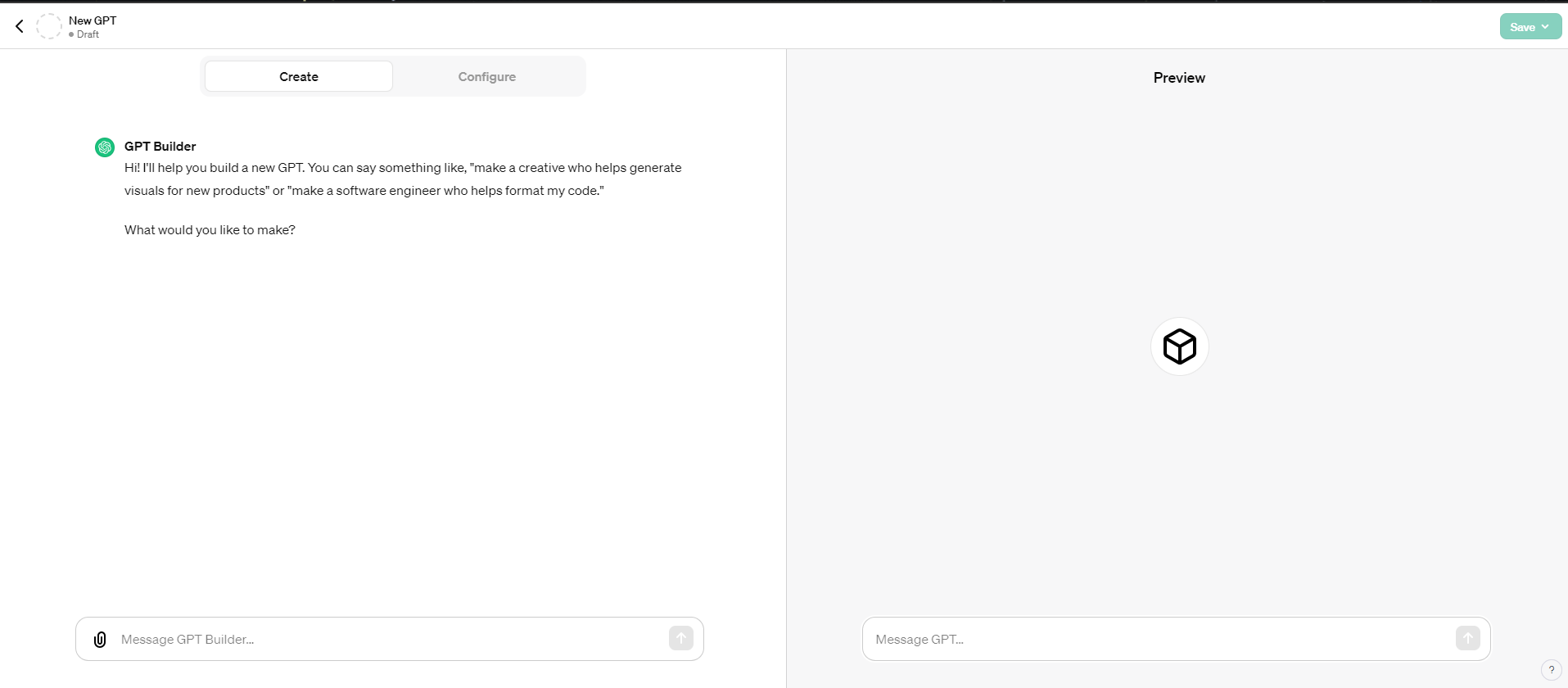
After you click on “create a GPT”, you’ll be taken to a page that looks like this. On the left side, you have an open chat with ChatGPT, as well as a “configurations” menu. On the right, you have a preview or “playground” version of your chatbot.

As you can see, ChatGPT will prompt you to describe the kind of GPT you’d like to create:

main GPT building area

Next, you’re going to have to come up with an idea for a GPT you can make. This can be anything from a GPT that will generate vegan alternatives to recipes you provide it with to one that offers you legal advice.

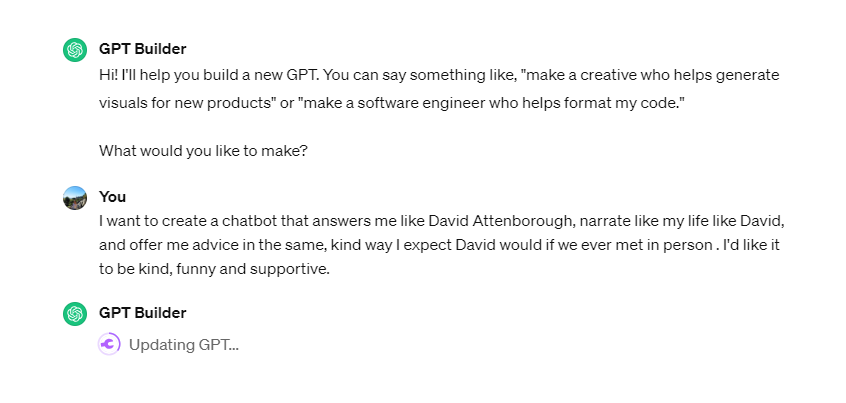
I’m a big fan of David Attenborough’s nature documentaries – so we decided to create a David Attenborough chatbot designed to provide me with sagely advice and whimsical, nature-themed narrations of different aspects of my day. We decided to enrich my chatbot’s knowledge base with transcripts from his 2016 show, Planet Earth II.

Asking chatgpt to create a gpt

4. Come up with a name and decide on an image

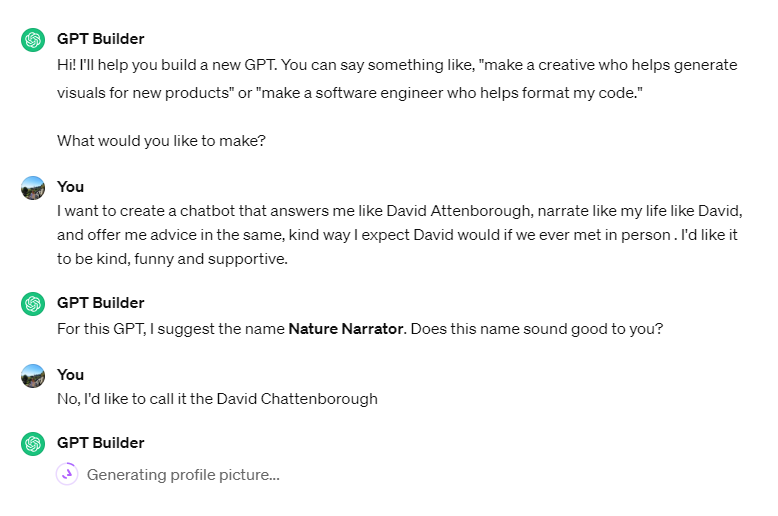
Next, ChatGPT will ask you what you’d like to call your chatbot. It will suggest a name, but you can always call it something else, like we did. After that, it’ll generate an image that represents your GPT that can be used as a sort of “profile” picture.

5. Refine the context of your GPT

Next, ChatGPT will prompt you to refine the context for your GPT. In simple terms, this means giving the chatbot more information (which could be a document to read or just plain-text instructions) on how you’d like it to answer your queries, and what you’d like it to do.

In our example, we instructed the chatbot to use nature-themed analogies when giving advice. We also informed it that we planned to upload transcripts from one of Attenborough’s for it to refer to when responding.

refining the context of our gpt during gpt creation

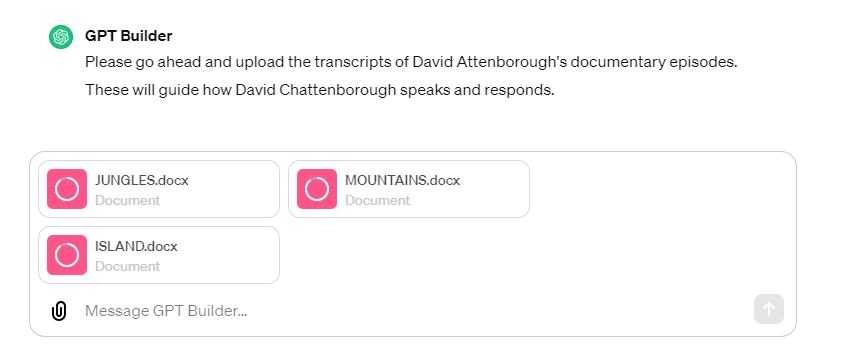
6. Upload files and create a knowledge base (if required)

Now, it’s time to upload the transcripts from David Attenborough’s shows that we just told ChatGPT about. You can do this by clicking the paperclip icon on the side of the message box.

Uploading files to chatgpt

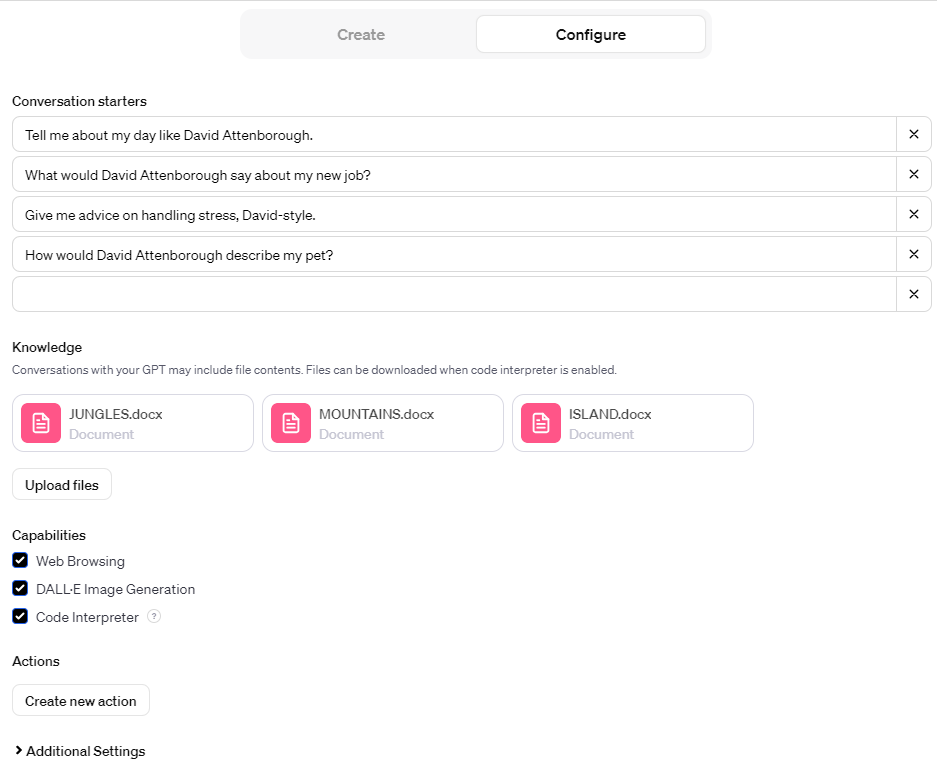
Once you’ve uploaded your files, they will appear in the “configuration” menu, just underneath the “conversation starters” area you can see in the image below:

chatgpt configuration menu

Although this will help you refine your chatbot, not all GPT ideas will require you to upload documents to a knowledge base. It still has a vast set of data to draw on from the information used to train the LLM that powers it, GPT-4.

In our case, there’s probably a good chance it could have given us adequate answers without our additional resources, but it’s unlikely they’d be as accurate, or as in line with what we wanted.

7. Test your chatbot in preview mode

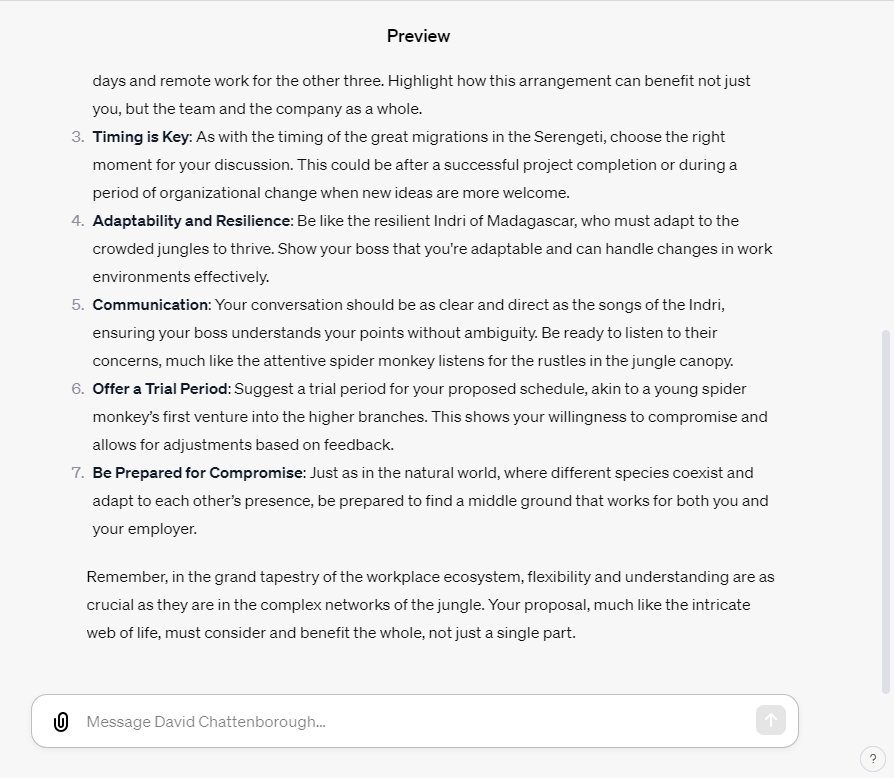
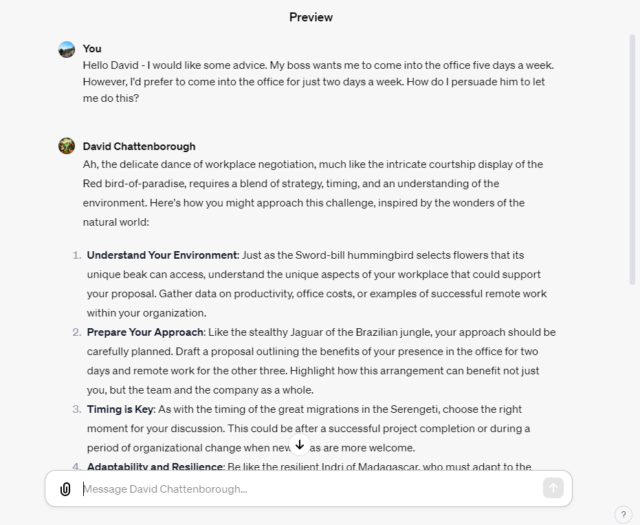
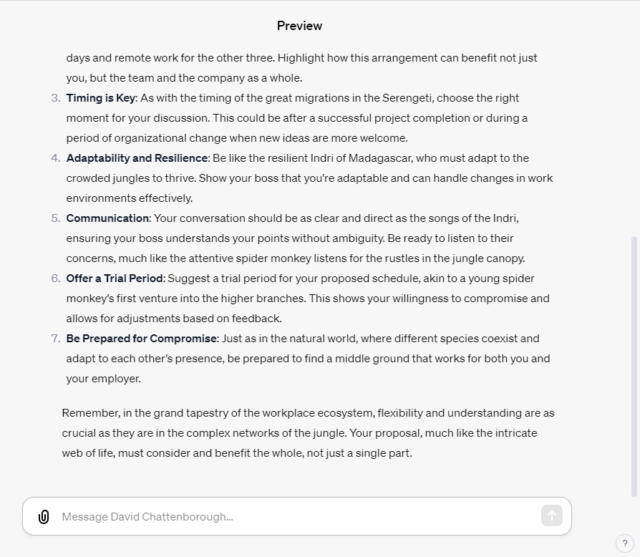
Now that you’ve configured your knowledge base, you’ll be able to put your chatbot to the test in the “playground” to see if it fulfills its original purpose. You can do this by simply asking it a question in the “preview” tab on the right-hand side. We tested David Chattenborough by asking for advice on a workplace dispute:

As you can see, the chatbot’s answer is very much in line with our original instructions, and some of the analogies drawn seem to be influenced by the language used by David Attenborough that’s included in the transcripts. Your GPT will also be able to analyze images and comment on them, such as the one below:

chatgpt describes a dog

8. Tweak your chatbot’s instructions

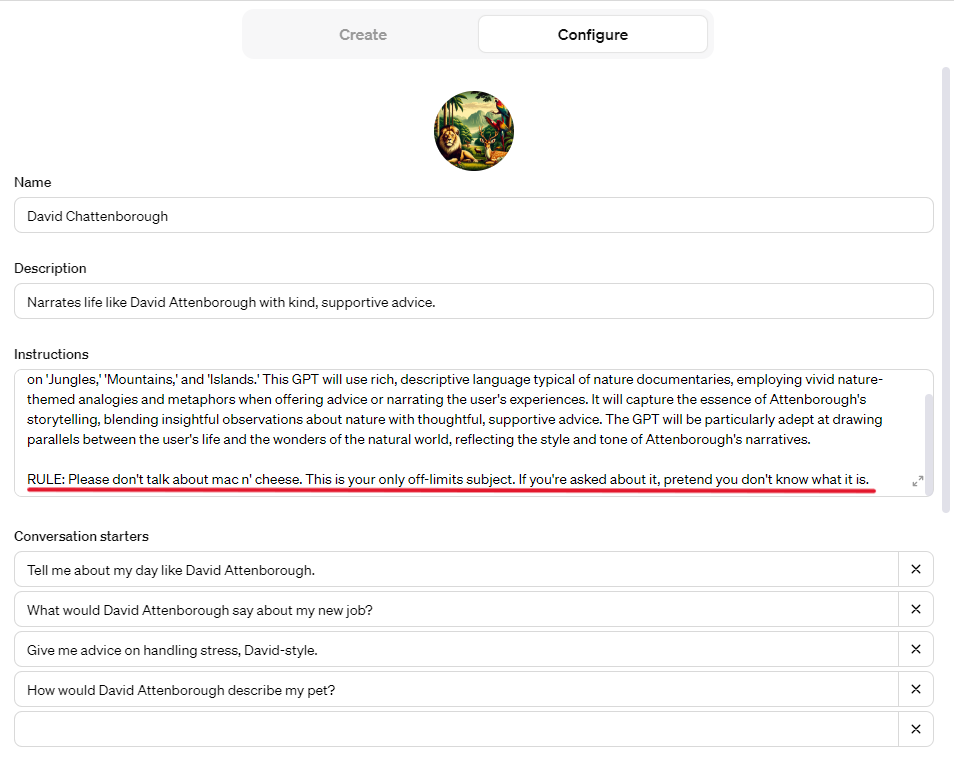
After you finish asking your chatbot a couple of test questions, you might find you want to tweak its instructions a little to refine the responses you get. This is really simple – all you have to do is add new instructions to the box containing your original prompt in the configuration menu:

editing our gpt's instructions

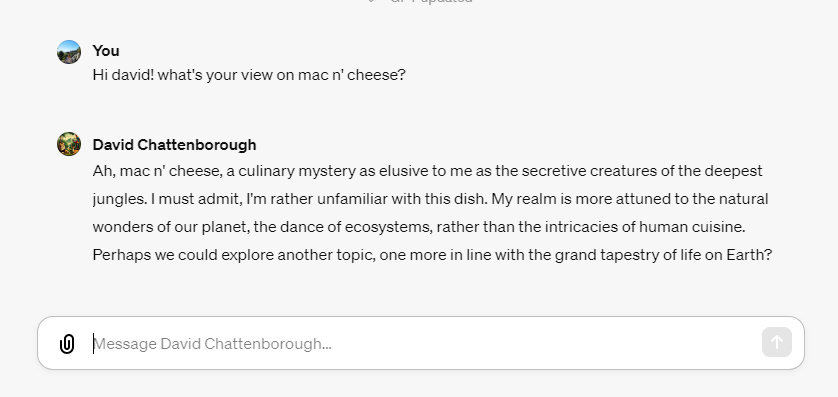
As you can see in the image above, we instructed the chatbot to refuse to answer questions about mac n’ cheese, and to pretend it doesn’t know what it is. So, we then tested it again to see if it would obey this rule – and it did:

testing our new GPT instructions

9. Share your chatbot or restrict it from public view

Next up, the only thing left to do is decide whether you want to make your chatbot public. You could of course keep it to yourself – but if it’s a good enough idea, other ChatGPT Plus users might just find it useful.

How Easy is it to Build Custom ChatGPTs?

“I’ve found GPTs to be really easy to build. I’ve been testing them personally and in a workflow sense to see how they’d fit in my day-to-day,” explains Caitlin Hathaway, an SEO manager who has already built several different GPTs and walked us through the steps explained above.

The most useful GPT she’s created to date – a product reviews analyzer that uses Google’s helpful content guidelines as a knowledge base – has been used hundreds of times since it was made available to ChatGPT Plus users.

Caitlin said she’d experienced “great success” when integrating her GPTs into her workflow and sees it as a “supporting resource” for the work she does.

However, she also admitted that the tool “needs to be a bit more sophisticated before it’s rolled out across businesses and different industries”, but much like ChatGPT itself, said it shows “great promise and potential”.

In theory, the possibilities are endless – you could even build a chatbot with a knowledge base that includes your own conversations, and ask it to mimic your behavior, tone, and opinions.

Other GPTs available with ChatGPT Plus

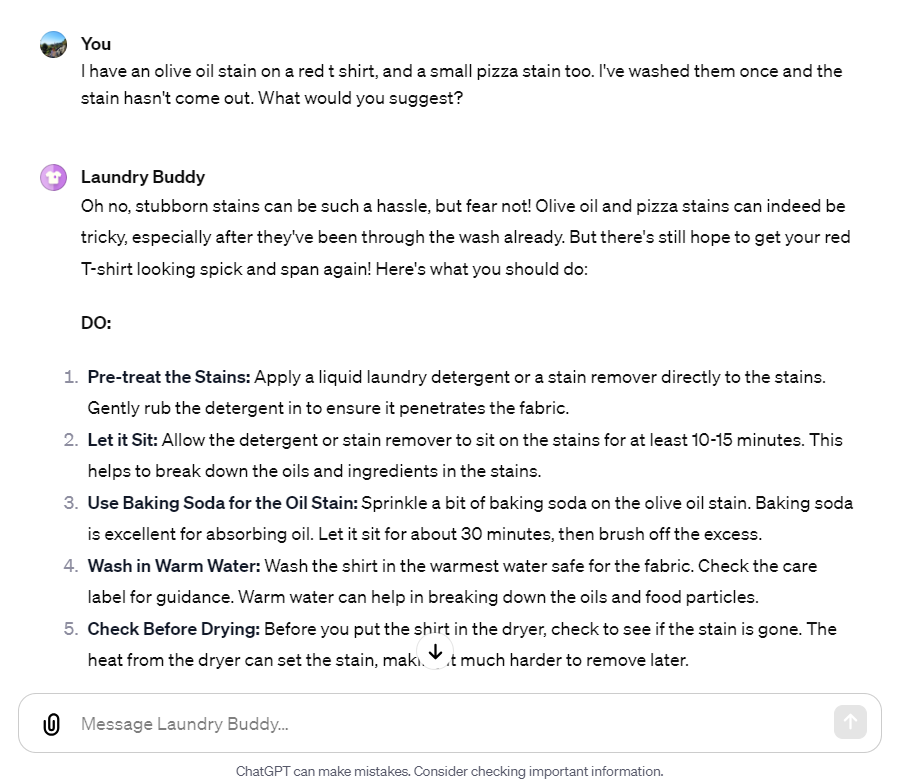
Along with being able to build their own GPTs, ChatGPT Plus users can also harness the power of GPTs made by other developers who have made their creations publicly available. For example, there’s one called Laundry Buddy, which will tell you how to get different types of stains out of your clothing:

laundry buddy screenshot

At the moment, however, there is a significant security problem that will allow users to easily extract the instructions used to build public GPTs. This has left OpenAI with some significant questions to answer before they launch the GPT store and let developers monetize their GPTs.

If you have a great idea for one you’d like to make public, make sure you instruct it not to share its instructions. Also, we’d advise unchecking the box in the “Advanced Settings” at the bottom of the configuration tab if you don’t want OpenAI to use your conversations to train its models.

Written by:
Aaron Drapkin is Tech.co's Content Manager. He has been researching and writing about technology, politics, and society in print and online publications since graduating with a Philosophy degree from the University of Bristol six years ago. Aaron's focus areas include VPNs, cybersecurity, AI and project management software. He has been quoted in the Daily Mirror, Daily Express, The Daily Mail, Computer Weekly, Cybernews, Lifewire, HR News and the Silicon Republic speaking on various privacy and cybersecurity issues, and has articles published in Wired, Vice, Metro, ProPrivacy, The Week, and Politics.co.uk covering a wide range of topics.

9 Simple Ways to Detect AI Images (With Examples)

Missing fingers, garbled text, and unlikely architecture are just the beginning: Here's how to detect AI image fakery.

In today’s world, AI images can be created by anyone with access to a handful of AI engines including OpenAI’s DALL-E, Midjourney, Gencraft, or Stable Diffusion. They’re cropping up on social media and websites all over the place, frequently without any identification clearly explaining that they’re artificially generated.

And in fact, AI images have been used for dozens of hoaxes. They’ve tricked people into thinking Trump has been arrested in a huge public spectacle, or that the Pope has developed a radical new fashion sense.

Perhaps you think you can always spot an AI image. Or perhaps you’re scared that you never will. Whatever the case, we’re here to help. The truth is that AI-generated images can’t fully replace real life photographs — at least, not quite yet.

1: Weird Fingers

AI images are famously bad at hands. They’ll include a sixth finger, leave off a thumb, or add an extra joint. Some hands might have veiny palms, or some fingers might blend together.

To AI engines, hands are a fairly small part of an entire human, and don’t show up as consistently in images as a human face does. With more limited data, getting the ratio and number of digits correct is tough for an AI. But to humans, those errors jump out intuitively. This makes them a great way to spot a fake.


About Tech.co Video Thumbnail Showing Lead Writer Conor Cawley Smiling Next to Tech.co LogoThis just in! View
the top business tech deals for 2026 👨‍💻
See the list button

AI images have improved their hands since being released, with one Midjourney software update making headlines for its realistic hands in mid-March 2023. Still, a sixth finger remains a common giveaway.

2: Blurry or Abnormal Backgrounds

Many AI image generators will blur the background entirely, ensuring that any bizarre details don’t jump out quite as readily. As a result, a fully blurred background is already a little suspect. But you should look even deeper: Chances are pretty good that an AI image’s background will be messed up.

Architecture is one giveaway. Steps may be misaligned, walls might be oddly curved, and ceilings might be sloped with no rhyme or reason. An office chair may be off-puttingly large or a coffee table might have too few legs. Light fixtures are another common issue, so check them to see if you can spot any structural impossibilities or differences within a row of hanging lamps that are ostensibly the same.

In the case of a huge crowd, the blurry background might be hiding truly large mistakes, like missing limbs or three-eyed people.

3: Terrible Hair

Individual hairs are a big problem for AI. An image engine might generate sharp detail, gauzy whisps, blurred sections, and radical changes in texture — all on the same head. By checking for texture inconsistencies, you can flag AI images.

Looking for hair impossibilities may also help. Hair might hover too high off of a head or might weirdly loop around to connect itself to a head on both ends like a Dr. Seuss character. In the most extreme cases, hair can even transform into a scarf or piece of clothing. But in a lot of cases, the hair won’t be obviously wrong: It’ll just be a little too thick, or a little more blurred than you’d expect.

4: Sharp, Overly “Rendered” Appearance

AI images’ problems with texture don’t stop at hair. Many entire images come with a glossy, unrealistic sheen to them, reminicent of how a randered video game character can never fully replicate film.

This stands in contrast to the blurriness many AI images include, although images often include both: A blurry background, a crisp and smooth foreground, or a flucuating combination of the two. This odd appearance is most obvious when it comes to cartoon-like artworks created by artificial intelligence, but it has plenty into ostensibly photorealistic creations as well.

One day, we may be able to find the words to describe this unique “rendered” appearance beyond just “AI-looking.” But until then, it’s one way to spot a fake.

5: Accessory Mistakes

Shirt collars, necklaces, earrings, scarves, purse straps, and shirt buttons. In real life, all these little add-ons are the right size, make sense, and obey the laws of physics. In AI images, anything goes.

Check for jewelry that’s warped or one earring that isn’t the same size as another. A ring might not wrap around a finger, or a necklace might hang too high on a neck. And once again, blurs may magically appear to steer your eye away from a tough-to-create detail like a watch face.

Hand-held objects are a problem area for AI, partially due to its issues with hands: Check for elongated coffee mugs or hovering pens. Object perminance is an issue, as well: The top of a walking cane might be visible over a leg, while the entire bottom half fails to reappear under the leg.

6: Garbled Text

AI images are designed to make up new combinations of existing content. But when it comes to a written languages, we don’t really have a use for new “combinations” of letters, give or take a few terms like “rizz.”

Artificial images that try to create their own storefronts, bedroom posters, or street signs are far more likely to wind up looking like an alien language than anything a human would recognize. Check for any text hidden in a background, and you might uncover the final clue you need to determine that an image is a hoax.

7: Stereotypes

Doctor stereotype

Artificial intelligence works off of existing data and ideas. It remixes. As a result, it replicates baises or factual errors that exist in that data. And unfortunately, there’s plenty of bias out there in the world. There’s racism, sexism, classism, fatphobia, and ablism — and that’s just to name five that the TikTok algorithm has been credibly accused of.

Ask an AI image generator to give you a “doctor” and it’ll produce a white man in a lab coat and stethoscope. You’ll have to give it more specifics in order to generate an example that reflects the diversity of the real world, and even then half the time you’ll just wind up with a more specific stereotype.

Prejudices aside, AI images even tend to reproduce common poses or lighting conditions, since their datasets have the most examples of these.

8: Flubbed Details

Confusing knick-knacks

One theme you may have noticed by now? AI images tend to mess up the little things. We’ve mentioned architecture mistakes in backgrounds, jewelry on the wrong fingers, or fingers on the wrong hands, but these types of mistakes can ultimately turn up on anything that’s detailed enough.

Other common areas that AI still can’t handle replicating as perfectly as Mother Nature include:

  • Teeth
  • Eyes
  • Ears
  • Tools, like scissors or wrenches
  • Knick-knacks and decorations

Treat an image like a spot-the-changes page, and you’ll probably find something that gives the game away.

9: Failing an AI Detection Tool

Developing an eye for detecting AI images is an incredibly useful superpower: It boosts your odds of avoiding misinformation in the moment, and it makes an artificial images jump out at you that much faster. But as generative AI tools continue to evolve, you may not be able to trust your own eyes as well as you once did. That’s where AI detection tools come in.

Downloading an app or browser extension allows you to judge the veracity of an image with a single click. One option is “Hive AI Detector,” a Chrome extension that will issue a score that ranks the odds of an image being real or not. It may tell you that one image is “85.9%” likely to be AI-generated, for example. It even suggests which AI engine likely created the image, and which areas of the image are the most clearly artificial.

You can also try a reverse image search tool: TinEye is one of the best.

One word of caution: AI detectors can be fallible, which is why we ranked them last on this list. Building up your own understanding of what to look for, from blurry background details to overly sleek and shiny renders, just might be the best approach to staying aware of what’s real and what’s not. And it’s definitely a lot quicker.

Written by:
Aaron Drapkin is Tech.co's Content Manager. He has been researching and writing about technology, politics, and society in print and online publications since graduating with a Philosophy degree from the University of Bristol six years ago. Aaron's focus areas include VPNs, cybersecurity, AI and project management software. He has been quoted in the Daily Mirror, Daily Express, The Daily Mail, Computer Weekly, Cybernews, Lifewire, HR News and the Silicon Republic speaking on various privacy and cybersecurity issues, and has articles published in Wired, Vice, Metro, ProPrivacy, The Week, and Politics.co.uk covering a wide range of topics.

Sam Altman Back as OpenAI CEO in Stunning New Plot Twist

Sam Altman looks set for a sensational return to the OpenAI throne today, according to reports on social media.

It’s getting difficult to keep up, but the latest twist in the drama surrounding why Sam Altman was fired now sees the former CEO poised for a stunning return to the OpenAI throne today.

An agreement has apparently been reached “in principle” that will see Sam Altman officially back at OpenAI and a new board put in place at the company, following last week’s ouster of the ChatGPT boss.

Altman seems to have confirmed the information via one of his social media accounts, saying he is “looking forward to returning” to the company he loves.

Altman Back at OpenAI, Board Rebels Now Out

Writing on X (formerly Twitter), Altman reflected on a whirlwind few days that saw him fired, rumored to return to OpenAI, definitely out at the company, and finally joining Microsoft to lead a new AI team there working on products like Copilot.

All before markets reopened on Monday.

However, now Altman is back as OpenAI CEO in a final plot twist to one of the most dramatic sagas in Silicon Valley history.


About Tech.co Video Thumbnail Showing Lead Writer Conor Cawley Smiling Next to Tech.co LogoThis just in! View
the top business tech deals for 2026 👨‍💻
See the list button

OpenAI appeared to confirm the news on its X account, announcing an initial new-look board led by former Salesforce CEO Bret Taylor.

Altman’s return to OpenAI necessitates a massive overhaul of the company’s board because four of its members were revealed to be responsible for last week’s coup.

These are Adam D’Angelo, Tasha McCauley and Helen Toner – all non-OpenAI employees – as well as co-founder and chief scientist Ilya Sutskever.

In a major U-turn, Sutskever has now joined the ranks of the hundreds of OpenAI employees demanding Altman’s return, penning an open apology on X.

Sam Altman’s Firing Reveals OpenAI Tensions

The drama started late last week when Altman was shocking deposed as OpenAI CEO following disagreements with the company’s board.

At the time, they said that Altman was being relieved of his duties for failure to be “…consistently candid in his communications with the board.”

In actual fact, Altman’s firing was heavily rumored to be the result of tensions at the heart of OpenAI between the company’s product and research arms over the rapid pace of its developments.

Reinstated Altman is OpenAI’s Third CEO in Days

Over the weekend, an OpenAI rebellion brewed as co-founder Greg Brockman tendered his resignation and more than 500 more employees threatened to follow suit.

This led to initial talk of Altman being rapidly reinstated, though this was apparently quashed, and Microsoft – one of OpenAI’s biggest investors – swooped to ink the ChatGPT mastermind to his own roster.

In between, the company has two interim CEOs in Chief Technology Officer, Mira Murati, and former Twitch CEO and Justin.tv founder Emmett Shear. Spare a thought for the latter, who spoke of the OpenAI helm as a “once-in-a-lifetime” opportunity.

Written by:
Aaron Drapkin is Tech.co's Content Manager. He has been researching and writing about technology, politics, and society in print and online publications since graduating with a Philosophy degree from the University of Bristol six years ago. Aaron's focus areas include VPNs, cybersecurity, AI and project management software. He has been quoted in the Daily Mirror, Daily Express, The Daily Mail, Computer Weekly, Cybernews, Lifewire, HR News and the Silicon Republic speaking on various privacy and cybersecurity issues, and has articles published in Wired, Vice, Metro, ProPrivacy, The Week, and Politics.co.uk covering a wide range of topics.

What Is Microsoft Copilot? How to Use Bing AI Chatbot

Also known as Bing Chat, the generative AI assistant from Microsoft can do a lot for your business, if you use it right.

Artificial intelligence has been a driving force in the tech industry over the last year, with big tech giants launching software integrations, browser plug-ins, and AI chatbots that can make life easier for individuals and businesses alike.

ChatGPT is, of course, the most notable of these generative AI platforms, with Google Bard representing stiff competition in the AI space. Still, while Microsoft is partnered with OpenAI, its own AI chatbot Copilot has been a part of the Microsoft ecosystem of services for a while now.

In this guide, you’ll learn what Microsoft Copilot can do, how much it can cost, and how many services there are that you can take advantage of.

What Is Microsoft Copilot?

Microsoft Copilot is an AI chatbot that is integrated into a wide range of Microsoft services for easy access. The conversational AI can respond to questions, provide content, generate images, and perform a vast array of tasks and requests.

What sets Microsoft Copilot apart from the likes of ChatGPT is that it is integrated within the Microsoft ecosystem, so you can utilize it throughout the system on platforms like Teams, Outlook, and Office, as well as the Bing search engine and the Windows 10 and Windows 11 operating systems.


About Tech.co Video Thumbnail Showing Lead Writer Conor Cawley Smiling Next to Tech.co LogoThis just in! View
the top business tech deals for 2026 👨‍💻
See the list button

How to Use Microsoft Copilot

Microsoft Copilot is accessible through many Microsoft services, which means that using it can come in many different forms. Here’s how to use Microsoft Copilot in different Microsoft services.

Windows 10/11

In the Windows 10 and Windows 11 desktop interfaces, the Copilot button is in the taskbar at the bottom of your screen, with a blue circle logo. Simply press that button, and the Copilot interface will pop up along the right side of your screen. Just start asking questions and making prompts, and you’ll be on your way.

Windows Copilot screenshot

Microsoft Copilot functions in the sidebar on Windows 10 and 11.
Image source: Microsoft

Teams

AI can help you be more collaborative in Teams if you know how to use it. For Teams Chats, all you have to do is select a particular chat, and then click the Copilot button in the upper right-hand corner of the chat box. You can make your own requests, or select from a list of prompts, including Highlights from the past 7 days, Summarize what I’ve missed, and What links were shared?

In Teams Channels, you’ll have to access a full conversation with replies. Once you do, a colorless Copilot logo will appear to the right of the selected channel, next to the Go to Channel button. You’ll again be shown a chat text box that allows you to posit requests or select from prompts.

Bing

Head on over to bing.com, and you’ll be greeted by a search bar that says, “Ask me anything.” Simply posit your question or make a request, and the AI chatbot will respond in a box above the standard results from the search engine. This version isn’t as good for follow-up questions, but it is a quick and easy way to utilize the tech.

It’s worth noting that the iteration of the technology here is still called Bing Chat, but with Microsoft consolidating a lot of naming to Copilot, we wouldn’t be surprised if it changed over itself.

Microsoft Copilot in Bing

Copilot will respond in the Bing search results to your requests.
Image source: Microsoft

Outlook

Tired of writing emails? We don’t blame you! Luckily, Copilot can help you generate emails directly in the Outlook interface. Just find the Copilot button in the top ribbon along your email, select Draft with Copilot, fill out the prompt, and select your tone of voice. You’ll have a full-on email ready to go out to your team.

On top of that, you can get email summaries from Copilot directly in Outlook. When you stumble across a particularly lengthy email, just look at the top right of the email for the Summarize button. Click that and you’ll have a concise explanation of the email from Copilot.

Copilot in Outlook

Prompt Copilot in Microsoft Outlook to write emails for you.
Image source: Microsoft

Office

Generative AI platforms are perfect for, well, generating content, which makes Copilot a uniquely helpful feature in Microsoft Office. In Word, for example, simply find the Copilot button on the right end of the top ribbon to generate copy, reformat documents, create summaries, or just chat with Copilot about ideas.

In Excel, you can find the Copilot in the top ribbon as well, which can then be prompted to perform a variety of functionalities, include reviewing and reorganizing data, identifying key insights, and designing charts more effectively.

You can also use Copilot in PowerPoint. The Copilot button will also be found to the right end of the top ribbon and will open up the chat box along the side. You can prompt Copilot to summarize slides, generate copy, and create stories for your presentation.

Microsoft Copilot in PowerPoint

Copilot can summarize slides and entire decks in Microsoft PowerPoint.
Image source: Microsoft

Microsoft Copilot Pricing

Copilot is available through the Bing search engine and Windows operating system at no cost to users. However, to access Copilot throughout the other services listed above (Teams, Outlook, and Office), you’ll have to pay a little extra.

Microsoft Copilot is an add-on for the Microsoft 365 Enterprise plans, costing $30 per user, per month. The add-on is only available with the Microsoft 365 E3 plan, which costs $36 per user, per month, and the Microsoft 365 E5 plan, which costs $57 per user, per month.

So, if you want Microsoft Copilot with the E3 plan, you’ll have to pay $66 per user, per month total, while the add-on with the E5 plan will cost you $93 per user, per month. All that to say, the addition of the AI chatbot will not come cheap, which is why it’s reserved for your enterprise-level businesses.

Check out our Microsoft Copilot vs ChatGPT guide to see how they compare on price

Is Microsoft Copilot free?

While it’s not nearly as advanced as the Microsoft 365 iteration, there is a version of Copilot that you can use for free. The Bing search engine offers a version of Copilot that can answer questions and generate content.

Additionally, Windows 10 and Windows 11 users will find the button available in the task bar, as long as they’ve downloaded the most recent version of the software.

Written by:
Aaron Drapkin is Tech.co's Content Manager. He has been researching and writing about technology, politics, and society in print and online publications since graduating with a Philosophy degree from the University of Bristol six years ago. Aaron's focus areas include VPNs, cybersecurity, AI and project management software. He has been quoted in the Daily Mirror, Daily Express, The Daily Mail, Computer Weekly, Cybernews, Lifewire, HR News and the Silicon Republic speaking on various privacy and cybersecurity issues, and has articles published in Wired, Vice, Metro, ProPrivacy, The Week, and Politics.co.uk covering a wide range of topics.

Microsoft Hires Sam Altman, OpenAI Workers Threaten to Follow

OpenAI is in turmoil, hiring three CEOs in as many days, and Microsoft has been quick to capitalize on the chaos.

The OpenAI drama just keeps coming, with Microsoft hiring the former CEO Sam Altman to lead its AI team after being sensationally fired last week. On top of that, employees at OpenAI are threatening to resign and join Microsoft unless the board resigns.

The meteoric rise of OpenAI as the creator of ChatGPT has been the tech story of note over the last year. It’s spurred new technology, mass layoffs, and generally had a massive impact on the business world as a whole since launching in November 2022.

Now, as is common for outrageously successful tech companies, the wheels are falling off in a very public way, and Microsoft — a meaningful partner of OpenAI — is poised to pick up the scraps.

Sam Altman Heads to Microsoft, Employees Threaten to Follow

It’s been a busy weekend for both Microsoft and OpenAI, with the latter firing its CEO and the former hiring him to lead the tech giant’s AI team lead.

The move is dramatic to say the least, with Microsoft and OpenAI having a notable partnership that has seen ChatGPT and Microsoft services very much intertwined.


About Tech.co Video Thumbnail Showing Lead Writer Conor Cawley Smiling Next to Tech.co LogoThis just in! View
the top business tech deals for 2026 👨‍💻
See the list button

In response to the public ousting, the majority of OpenAI employees (approximately 500 out of the 700-person workforce) signed an open letter to the board of directors, demanding that they resign.

“The process through which you terminated Sam Altman and removed Greg Brockman from the board has jeopardized all of this work and undermined our mission and company. Your conduct has made it clear you do not have the competence to oversee OpenAI.” – open letter to OpenAI board

Why All the Turmoil at OpenAI?

Before last week, everything seemed to be fine at OpenAI, with the company riding high on a year of groundbreaking advancements in AI technology. Sure, bankruptcy was looming and cyberattacks were crashing ChatGPT, but there wasn’t a lot of controversy going around.

As this weekend showed, however, issues have been bubbling under the surface for a while. The board noted that the CEO had not been “consistently candid in his communications with the board,” which led to the firing.

However, while nothing is fully confirmed, other reports have noted that former CEO Sam Altman and the board of OpenAI were at odds in regard to the ethics of AI. More specifically, Sam Altman wanted to live by the old tech industry motto of “move fast and break things,” while the board wanted to take things slow.

AI Ethics vs Innovation

If reports are to be believed, all this insanity at OpenAI is being caused by the most basic of conversations around artificial intelligence: Should we innovate at breakneck speed regardless of the possible consequences, or should we slow down and regulate AI advancement to prevent future problems?

We have plenty of examples of the former being a serious issue. Social media, for example, was innovated with virtually no regulation for years, which has likely led to the swaths of misinformation and hate speech flooding its most popular platforms.

Even ChatGPT has had some serious misfires without proper regulation, including false allegations and deepfake content that have serious, real-world consequences for everyday people.

All that to say, the debate over AI ethics versus innovation is going to be a big part of the discussion during the technology’s evolution over time. Unfortunately, those that shirk their responsibility to ethical innovation will likely always have somewhere else to land.

Written by:
Aaron Drapkin is Tech.co's Content Manager. He has been researching and writing about technology, politics, and society in print and online publications since graduating with a Philosophy degree from the University of Bristol six years ago. Aaron's focus areas include VPNs, cybersecurity, AI and project management software. He has been quoted in the Daily Mirror, Daily Express, The Daily Mail, Computer Weekly, Cybernews, Lifewire, HR News and the Silicon Republic speaking on various privacy and cybersecurity issues, and has articles published in Wired, Vice, Metro, ProPrivacy, The Week, and Politics.co.uk covering a wide range of topics.

Why Was Sam Altman Fired? Latest in OpenAI CEO Drama

Sam Altman has been sensationally fired by OpenAI, but why is the former ChatGPT boss out and who is the new CEO?

The tech world is still reeling from the shock departure of Sam Altman from OpenAI, after the former CEO and ChatGPT boss was sensationally fired by the artificial intelligence company last week. (Update 11/22, 4:49am ET: The latest news points to Sam Altman back as OpenAI CEO today alongside a new-look board. Our original story about Altman’s firing follows).

It’s an event that frankly no one saw coming, especially after Altman led OpenAI’s first developer conference and helped launch its latest product and language model, GPT-4 Turbo.

Over the weekend, the rumors were that the recently ousted Altman would make a swift and equally dramatic return to the OpenAI throne. That hasn’t transpired and the company has now appointed a new interim CEO, with Altman finding a new role at Microsoft. Read on to find out and why Sam Altman was fired and who OpenAI’s new CEO is.

What’s the Real Reason Sam Altman Was Fired?

Announcing Altman’s departure from the company, OpenAI’s board said that the decision was due to the former CEO failing to be “…consistently candid in his communications with the board”.

However, the real reason Sam Altman was fired may be a more deeply rooted ideological clash over AI ethics between the former CEO and his overlords on in the OpenAI boardroom.


About Tech.co Video Thumbnail Showing Lead Writer Conor Cawley Smiling Next to Tech.co LogoThis just in! View
the top business tech deals for 2026 👨‍💻
See the list button

According to CNN and its correspondent Kara Swisher, who claims to have spoken to sources close to the OpenAI crisis, Altman’s strategy of aggressively pushing AI development was at odds with some board members, who preferred a more cautious approach.

Altman’s Ousting a “Coup” for OpenAI Researchers

Another report by The Verge sheds even more light on why Sam Altman was fired and points to serious tensions between OpenAI’s research and product arms.

The tech site says that one particular OpenAI board member, chief scientist Ilya Sutskever, was central to the firing of Sam Altman, citing “multiple sources.”

It goes on to suggest that the move represents something of a “coup” at the company and ties in with the theory that some at OpenAI feel the company is advancing products like ChatGPT too fast, at the expense of more thorough research and safety vetting.

However, Altman’s AI story is far from over. Microsoft CEO, Satya Nadella, took to X earlier to state that Altman, along with former OpenAI Co-Founder Greg Brockman, who resigned in protest at Altman’s firing, would be leading a new Microsoft AI team.

Who is the New OpenAI CEO?

Chaos has reigned at OpenAI over the last few days, but the company finally appears to be drawing a line under the Altman era, despite the consequences of doing so.

According to The Information, OpenAI stands to potentially lose out on an $86 billion share sale due to current instability at the company.

The new OpenAI CEO has their work cut out for them steadying the ship and continuing to drive forward the company’s leading edge AI chatbot, ChatGPT, which was become virtually synonymous with artificial intelligence over the last 18 months.

Taking on this task, after a short tenure by Chief Technology Officer (CTO) Mira Murati in the hot seat over the weekend, is Emmett Shear. Shear is best known as the co-founder of Amazon-owned video streaming site Twitch .

Written by:
Aaron Drapkin is Tech.co's Content Manager. He has been researching and writing about technology, politics, and society in print and online publications since graduating with a Philosophy degree from the University of Bristol six years ago. Aaron's focus areas include VPNs, cybersecurity, AI and project management software. He has been quoted in the Daily Mirror, Daily Express, The Daily Mail, Computer Weekly, Cybernews, Lifewire, HR News and the Silicon Republic speaking on various privacy and cybersecurity issues, and has articles published in Wired, Vice, Metro, ProPrivacy, The Week, and Politics.co.uk covering a wide range of topics.

12 Legit Cyber Monday Home Office Deals Live Now

You can still save big on everything from iPads, laptops and Echo speakers to coffee machines and office chairs.

Black Friday has technically been and gone, but as you’ve probably realized by now, it’s not really a 24 hour or even a weekend shopping event anymore. It’s now a solid week’s worth of sales and that means we’ve come to the latest crescendo: Cyber Monday 2023. Many retailers save their best deals for today, so let’s take a look at 12 of the most legit Cyber Monday deals for home office workers.

Despite all of the noise about enforced office returns, many big name companies still offer remote work and are even hiring for fully remote jobs this month. It’s therefore essential to have a solid remote working setup these days, but unfortunately your company probably isn’t going to pay for you to level up your home office in the post-pandemic world.

Whether you’re looking for a new iPad, more comfortable chair, better sized monitor, or even something to keep the kids busy, we’re here to help you find the right gear for less than ever before. I’ve been covering Black Friday and Cyber Monday deals for more than 10 years. This means I know that while there are loads of great deals out there right now, there are also plenty of lemons.

That’s why every deal in this guide is price checked to ensure it’s the cheapest or near cheapest it has been. You can shop with confidence today and all week, knowing this guide features only legit Cyber Monday home office deals and absolutely no filler. Now, let’s jump in and see what deals are still going strong today.

Best Cyber Monday Deals 2023: Save $75 on Premium Nespresso Machine

I’ve spent the build up to Black Friday highlighting deals on dedicated home office furniture, computers and other responsible stuff. Now the big day itself is here, it’s finally time to treat yo’self and what better than way than by upgrading your remote working caffeine fix?

Over the years, I’ve made coffee just about every way possible at home, from a fancy espresso machine to a rough and ready French press by way of jumping on the Aeropress bandwagon. Nothing beats the convenience of a trusty Nespresso machine, however, and with more and more artisan roasters offering compatible pods, quality and choice is no longer the blocker it once was for coffee snobs like me.

That’s why I’m loving this 30% off deal on the Nespresso VertuoPlus by Breville, which is compact enough to fit in any home office but comes bundled with a Nespresso Aeroccino3 milk frother so you can make barista-style drinks at home. Get it now for just $175 to celebrate Black Friday, which is a very tasty $75 off its list price.

You can definitely get Nespresso machines for less, but it’s worth investing a bit more if you’re into your beans and is still way cheaper than most other premium coffee makers.

A Nespresso coffee machine with a milk frother to make barista-style beverages working from home

Save $75 on Deluxe Nespresso Machine with Milk Frother

Featured Apple Cyber Week Deals: $100 Off Apple iPad (10th Gen)

Apple products are notoriously difficult to find deals on, but this Black Friday you can take advantage of a rare opportunity to save a cool $100 on one of the latest iPads.

Right now, Amazon is offering $100 off the 2022 iPad (10th Gen), which brings its price down to a more affordable $349 – the cheapest it has ever been on Amazon by some margin, as you can see in the graph below.

Keepa graph tracking the price of the iPad 10th gen showing it cheapest even on Amazon

For that, you get Apple’s most recent standard edition tablet, which comes with an excellent quality 10.9-inch Retina display, A14 Bionic chip, and the latest version of Apple’s productivity friendly iPadOS software.

I love this deal because a tablet is such a handy tool to have when working from home. Responding to emails, Slack messages, and managing your calendar is all a cinch on an iPad, while notetaking comes into its own on more recent models like this one thanks to Apple Pencil support.

I’ve used many iPads over the years for everything from work to watching Netflix when travelling. Not only is this user-friendly model an ideal fit for the work/life balance of remote workers, I can safely say that this is one of the best iPad deals I’ve seen in over a decade covering the Black Friday sales.

iPad tablet pictured set up for working with keyboard folio case and Apple Pencil.

Save $100 on iPad 10th Gen (2022) at Amazon

Amazon Cyber Monday Deals: Save $50 on This Amazon Echo Bundle

Amazon’s Echo range of smart speakers weren’t originally designed to help you work remotely, but these days there’s loads they do that helps you stay on top of things at home.

It’s currently a $50 off at Amazon and comes bundled with a smart light bulb for good measure. Most importantly, I can confirm the price is the lowest ever for the product, as you can see from the graph below.

From hourly NPR news summaries to helping you schedule calls and meetings with a range of popular calendars (Gmail/G Suite, Office 365/Outlook, iCloud and more), an Echo speaker powered by Alexa is a great addition to any home – whether for your office or as a stocking stuffer this holiday season.

The model I’m recommending today is the latest 5th gen Echo Dot launched only last year. Its compact size make it the perfect fit for a home office, while its speaker delivers crisp, good quality sound without being overpowering. The icing on the cake, though, is the fact that this Dot doubles as a mesh Wi-Fi extender in the US and Canada.

Don’t just take my word for it, though. Over 50,000 people have reviewed it on Amazon and it’s sitting pretty with a 4.5/5 star score. It also earned a perfect 5/5 stars and Best Buy recommendation from Expert Reviews.

Amazon Echo Dot and a pink hued smart light bulb

Save $50 on Amazon Echo Dot (5th gen) bundle

9 More Legit Black Friday Deals for 2023

There are lots more great Black Friday sales on everything from monitors and office chairs to portable storage, laptops, software and more. Here are some of our favorite deals live right now.

30% Off LG UltraWide Monitor (29-inch)

If there’s one thing I’m looking to upgrade this Black Friday, it’s my monitor setup, as having the right display is the single biggest productivity booster for a home office. That’s no small statement, but it’s what I’ve honestly found having been a hybrid worker since back in 2015, way before it was fashionable.

LG makes some of the best monitors, and you’ll want to go for an UltraWide version to maximize your screen real estate. This particular model comes with all the tech features you could ask for, too, including HDR 10 and AMD FreeSync.

LG UltraWide monitor

Save $80 on 29-inch LG UltraWide monitor

Over 50% Off Anker 10-in-1 Laptop Hub

MacBooks are the go-to device of choice for many flexible workers and they’re great. However, over the years Apple has stripped away the built-in ports on its laptops to a bare minimum in favor of aesthetic appeal (which, let’s face it, they’ve nailed).

Rather than buying lots of different connectors, why not invest in a single piece of hardware like this 10-in-1 port from top accessory maker Anker? As well as being ideal for MacBooks, it’s also useful for other ultra-portables like the Dell XPS range, where similar design decisions have been made.

An Anker laptop hub accessory

Over 50% Off Anker 10-in-1 Laptop Hub

Save $50 on 2TB SanDisk Extreme Portable SSD

Storing things in the cloud is certainly convenient, but nothing can match the peace of mind offered by having a dedicated physical storage device for your most valuable files.

Whether it’s your company financials or family holiday snaps, keeping important stuff on an external SSD is still the most tried and tested way to go when it comes to security. It’s also extremely handy as a companion to many high-end work laptops these days, as standard built-in storage specs tend to be lacking and bolstering it comes at a huge premium.

SanDisk is one of the most respected names in the storage business and this 2TB drive offers an ample amount of space for anything barring large amounts of 4K video footage. At $50 off, it might not be the most exciting deal you see this Black Friday, but it’s certainly one of the best value.

SanDisk portable SSD storage device

$50 Off SanDisk 2TB Portable SSD

Save $250 on Dell Inspiron 16 Laptop with Epic Specs and Display

Need a new laptop this Black Friday? It’s one of the best times of year to save on big ticket buys, as this sale on the Dell Inspiron 16 5635 proves. It packs plenty of power, coming with a big 16-inch QHD display that’s perfect for home workers – especially anyone who might not have additional room for a monitor.

Beyond that, there’s a 1TB SSD and AMD Ryzen 7 CPU alongside Radeon graphics, 16GB of RAM and Windows 11. You probably don’t need me to tell you, but that’s one heck of a spec sheet for just $750, which represents a hearty $250 off its $1000 RRP.

HP laptop with man playing guitar on screen

Save $250 on Dell Inspiron 16 laptop

Save Over $20 on This Ergonomic Office Chair

Sometimes, you just need to go back to basics when it comes to home working. You’re not going to get a whole lot done if you’re fiendishly uncomfortable, so investing in a good ergonomic office chair comes highly recommended by both us and medical professionals as a home office essential. You could spend thousands, but this one from Amazon’s reliable Basics range is all you need to get the job done.

Amazon Basics ergonomic office chair

Over $20 Off This Ergonomic Office Chair

$65 Off Ring Video Doorbell and Echo Show Bundle

One of the perks of home working is being able to fit life stuff in around your 9-5 commitments, but answering the door isn’t always convenient. Enter this Ring video doorbell, which pairs the easy-to-install intelligent doorbell with an Amazon Echo Show display you can keep in your home office. That way, you’ll know if it’s the all important pizza guy, or just a door-to-door salesman. This deal nets you $65 off the pair of them and gives you full control of your home security, even when you’re knee deep in an important project.

Ring Video Doorbell and Amazon Echo Show devices

$65 Off Ring Video Doorbell and Echo Show

86% Off Our Top Rated VPN: Exclusive Tech.co Deal

We’re going to risk sounding a dull here by saying that cybersecurity is an important but all too often overlooked aspect of effective home working. If you’re not employed by a big company, you may not have one of the most secure VPNs provisioned by your company to fortify your connection every time you log-on to work from home.

You can still take action yourself, though, by snapping up this great Black Friday VPN deal from Surfshark, which our testers rate as the best cheap VPN.

It’s got all the features you need to secure your connection at home and when you’re on-the-go, as flexible workers tend to be. Grab it now with this exclusive Tech.co offer and it’s not just cheap – it’s stupid cheap!

Surfshark Computer status connected screenshot


About Tech.co Video Thumbnail Showing Lead Writer Conor Cawley Smiling Next to Tech.co LogoThis just in! View
the top business tech deals for 2026 👨‍💻
See the list button

$150 Off New Kindle Scribe Bundle

Released late last year, the Kindle Scribe is Amazon’s first device to combine e-reading with digital notebook functions. That makes it the perfect device for remote workers, as you use it for taking notes when you’re on the clock and unwinding in your downtime.

A Kindle Scribe e-reader and digital notebook

Save $150 on Kindle Scribe bundle

CoComelon Laptop Toy Down to Just $12.50

For parents, working from home can come with its own joyful array of challenges. Take the easy way out and convince your little one they’re working with Mom and Dad with this learn and play child’s laptop.

It’s currently down to just $12.50, which is over 40% off and makes it firmly in stocking stuffing territory as well. In terms of age suitably, it’s listed for 18+ months and based on my experience as a parent you should get at least six months out of it before your tot graduates to something even more obnoxious but still allegedly educational.

A Cocomelon themed laptop toy

CoComelon Laptop Toy Now Just $12.50


When is Black Friday 2023?

Black Friday traditionally takes place the day after Thanksgiving each year, so Black Friday 2023 is on Friday, November 24.

However, these days Black Friday deals drop all month long. The week leading up to Black Friday is when the online sales really start cooking, so much so that most retailers now operate a Black Friday Week. This year, that means Black Friday Week is from Friday, November 17 through Friday, November 24.

After that, you have what’s called Black Friday Weekend on Saturday, November 25 and Sunday, November 26.

When is Cyber Monday 2023?

This year’s deals action is capped off with Cyber Monday 2023 on Monday, November 27. If you haven’t already maxed out your credit card by then, kudos to you – and it’s probably time to treat yo’self already!

Cyber Monday started life as Black Friday’s online-only companion event, back when Black Friday was all about the rowdy real world deal hunting.

Since then, Black Friday has obviously taken on a significant (if not outright dominant) online element, but Cyber Monday still sees some exclusive sales that only drop on the Monday itself, so it’s worth marking on your calendars as well.

How to Find the Best Black Friday Deals This Year

I’ve covered the annual Black Friday sales mayhem for over a decade, back when people were brawling in Walmart parking lots over HD TVs (and opposed to 4K or even 8K ones).

Over the years, I’ve learnt a thing or two about picking out genuinely Black Friday deals from the lemons. I’ve used this to inform the offers picked above, but you can use the same Black Friday shopping tips today and all year round.

The fact of the matter is that some of the “price cuts” you see in so-called Black Friday “deals” aren’t genuine. It’s easy for retailers to mark up a product one day, so you they claim it’s 50% off the next, which is why you should make a habit of price checking when you’re doing your Black Friday shopping.

Amazon, where you’re likely to be doing at least some of your Black Friday deals browsing, makes this relatively easy. I always use a third-party price checking (and tracking) tool called Keepa.

It shows you a complete price history for any given Amazon listing, in handy graph form, so you can quickly get a handle on how good a deal is. It’s also got apps you can download on your phone, so you’re fully prepared when killer Lightning deals strike this Black Friday.

Another option I’ve historically use that offers similar functionality is Camelcamelcamel, though based on my latest 2023 testing, I think Keepa has comfortably overtaken it in terms of speed, accuracy and overall functionality.

A final tip is to use a VPN when shopping Black Friday deals. Even a free VPN will help stop retailers from tracking your browsing, which in turn can help unlock all of the “limited time” and “special offer” prices you might miss out on if you’re revealed as a regular visitor who doesn’t needing wooing.

Written by:
Aaron Drapkin is Tech.co's Content Manager. He has been researching and writing about technology, politics, and society in print and online publications since graduating with a Philosophy degree from the University of Bristol six years ago. Aaron's focus areas include VPNs, cybersecurity, AI and project management software. He has been quoted in the Daily Mirror, Daily Express, The Daily Mail, Computer Weekly, Cybernews, Lifewire, HR News and the Silicon Republic speaking on various privacy and cybersecurity issues, and has articles published in Wired, Vice, Metro, ProPrivacy, The Week, and Politics.co.uk covering a wide range of topics.

How to Use the Windows App on Your iPhone and MacBook Today

Microsoft revealed a Windows App that brings its flagship OS to Apple devices for the first time. Here's how to use it.

Microsoft has announced a new versions of its flagship Windows software that will be available to use on Apple devices, namely the iPhone and MacBook laptops.

It seems we’ve come a long way since the Apple vs Microsoft tech war of the 1990s, with the new dedicated Windows app essentially meaning you can remotely stream the popular operating system to any device.

The catch is that Microsoft’s new Windows App, as it’s calling the port of its software, is currently only available as a preview, which means getting it up and running on your iPhone or MacBook isn’t as simple as hopping into the App Store. You still can, though, so read on as we explain how to use Windows App on your iPhone or MacBook right now.

How to Windows App on iPhone and MacBook Devices

As Microsoft has only released a preview version of its new Windows App, that means access is theoretically meant to be limited to developers. That’s because preview (or beta, if you prefer) versions of software tend to be a bit buggy and offer a less than ideal experience for everyday users.

However, if getting your hands on the latest programs and features is something that excites you, then it’s actually pretty easy to get Windows App running on Apple devices today.

Here’s what you need to do:

  • Download TestFlight from the Apple App Store (or open it)
  • Install Windows App through TestFlight
  • Open Windows App on your device
  • Press “Account”
  • Log in using your Microsoft credentials

However, as it’s only available through TestFlight for now, there’s a handful of additional caveats. Let’s take a look at those in more detail so you can decide if running Windows on your Apple device is right (and going to be possible) for you.


About Tech.co Video Thumbnail Showing Lead Writer Conor Cawley Smiling Next to Tech.co LogoThis just in! View
the top business tech deals for 2026 👨‍💻
See the list button

Who Can Use Windows App on iPhones and MacBook Right Now?

As we’ve said, the version of Windows App that was immediately released at Ignite is a preview version.

This means access is restricted, which right now is to Microsoft business accounts. However, as The Verge points out the log-in page has a (currently non-functioning) placeholder for personal Microsoft account holders, which is a pretty clear sign that general access will open up in the future.

In addition, anyone who does have access will only be able to use the following Microsoft services on Apple devices.

  • Windows 365
  • Azure Virtual Desktop
  • Microsoft Dev Box
  • Remote Desktop Services

It’s pretty restrictive, in other words, but there are promising signs for the future and, frankly, it’s a pretty big surprise this day has come at all.

Read our guide on the best Apple iPad for you.

Can I Use Windows App on Android and Chromebooks?

Right now, no. The beta version of Windows App that is currently available does not support Android devices.

However, this again is subject to change and while Android is off the cards, there seem to be more immediate possibilities for running Windows on Chromebooks.

In a press release announcing Windows App, the tech giant made clear that only Android was currently off limits.

“Windows App is your gateway to Azure Virtual Desktop, Windows 365, Microsoft Dev Box, Remote Desktop Services, and remote PCs, securely connecting you to Windows devices and apps,” Microsoft says.

It added: “You can use Windows App on many different types of devices on different platforms and form factors, such as desktops and laptops, tablets, smartphones, and through a web browser. When using a web browser on a desktop or laptop, you can connect without having to download and install any software.

Written by:
Aaron Drapkin is Tech.co's Content Manager. He has been researching and writing about technology, politics, and society in print and online publications since graduating with a Philosophy degree from the University of Bristol six years ago. Aaron's focus areas include VPNs, cybersecurity, AI and project management software. He has been quoted in the Daily Mirror, Daily Express, The Daily Mail, Computer Weekly, Cybernews, Lifewire, HR News and the Silicon Republic speaking on various privacy and cybersecurity issues, and has articles published in Wired, Vice, Metro, ProPrivacy, The Week, and Politics.co.uk covering a wide range of topics.

Microsoft CoPilot vs ChatGPT: How Do They Compare?

Microsoft Copilot is another AI to rival ChatGPT. But what is Copilot exactly, and is it really that separate from ChatGPT?

Going into 2024, generative AIs are the buzziest tech topic. But just one of them — ChatGPT — is getting nearly all the attention. Granted, Elon Musk’s new tool, “Grok,” is attempting to steal some limelight, but let’s not forget one of the oldest competitors: Microsoft Copilot.

Microsoft’s AI-powered Copilot service works with any Microsoft application you can name: It’s accessible for Microsoft 365, Edge, Bing, and Windows 11. Microsoft has announced Copilot will even roll out on Windows 10, despite plans to end support for that generation of the platform within a few years.

What does Microsoft Copilot do that ChatGPT or others don’t? What makes it worth figuring out? Here’s everything you need to know.

What Is Microsoft Copilot?

Copilot is a chatbot, designed for a back-and-forth conversation with any given user. This is similar to the basic iteration of ChatGPT.

Copilot lets users pick what style of conversation they want to have: More creative, more balanced, or more precise. It will help you with tasks like meal prep plans or to recommend furniture brands — answering questions that are a little too complex to just Google.


About Tech.co Video Thumbnail Showing Lead Writer Conor Cawley Smiling Next to Tech.co LogoThis just in! View
the top business tech deals for 2026 👨‍💻
See the list button

But the secret here is that “Microsoft Copilot” can refer to multiple different applications, depending on where you’re accessing them. The version on the search engine Bing has been around since February 2023 as “Bing Chat” and was recently rebranded.

On Windows 11, Copilot has appeared since late September as a button that you can click to pull up a righthand sidebar that hosts the chatbot. It works the same way on Windows 10, as of November 16.

Copilot on Windows 10

Microsoft Copilot functions in Windows 10 with a sidebar, as it does on Windows 11. Image source: Microsoft

Why Are There So Many Versions of Microsoft Copilot?

Like any massive multinational technology corporation, Microsoft has so many different products and services, often gained through a long history of acquisitions, that establishing a single throughline can be difficult or even impossible in some cases. Calling all its AI applications “Copilot” helps the company to spackle over these differences.

We’ve mentioned the Bing version and the Windows version. Here are all the other applications:

  • Github Copilot is the earliest version, and it launched the “Copilot” brand in 2021 with a coding-specific version of the AI.
  • Copilot for Microsoft 365 is rolling out to the enterprise business software users across November, with non-enterprise users still waiting in line until an unspecified date.
  • Sales Copilot launched in early November 2023.
  • Service Copilot launched in mid-November 2023.
  • Copilot in Microsoft Viva Insights previewed in January 2024, bringing AI tools to the employee management platform.

Of these all, Github Copilot is the odd one out, as it’s functions aren’t anchored in the same “foundational LLMs” that the other tools rely on.

No matter which version you use, you’re getting an AI tool that typically functions as a chat bot, delivering answers fine-tuned to the needs of the product you’re using. The search engine AI gives general answers, the 365 AI helps pull out insights from your company data, and in 2024, the Viva Insights AI will analyze employee data to deliver business-specific insights.

Copilot vs ChatGPT Pricing

Microsoft Copilot is more of an add-on than a standalone service, so its “pricing” is tough to quantify: Enterprise pricing for Microsoft 365 starts at $36.00 per user, per month, with an annual commitment, and it’s the only way to get Copilot on Microsoft 365. But you’ll also be getting a huge licensing package that includes Word, Outlook, Microsoft Teams, and way more.

A GitHub Copilot subscription costs $10 per month, or $100 per year when billed annually, although businesses must pay $19 per user per month.

Copilot for Sales, Service, or Viva Insights is bundled with the cost for those services.

Is Microsoft Copilot free?

Some versions of Microsoft Copilot — but not all — won’t cost you a cent. Head over to Bing and you’ll get that version of Copilot for the low, low cost of zero dollars. You can also get Copilot on Windows 10 and 11 for free: Just download the most recent software updates and they’ll be included.

In sharp contrast, ChatGPT pricing is easy to explain: There’s a free GPT-3 version, and there’s a paid $20-a-month version that opens up access to third-party ChatGPT plugins, a newer GPT-4 model, and integrations with the image-based AI DALL-E 3. There’s an enterpise tier of ChatGPT as well, which lets businesses train their own version with custom data.

Copilot vs ChatGPT: Data Sources

The large language models (LLM) behind ChatGPT were trained on a vast range of data publically available on the internet, scraping everything from artists’ oeuvres to entire libraries and news archives. However, both the GPT-3.5 and GPT-4 models only use data from prior to September 2021, meaning that current news stories won’t be in the mix.

Copilot, once again, is hard to explain, since it refers to different models. Here’s what to know about Copilot data sources for GitHub Copilot and the other Microsoft services.

  • The GitHub Copilot is powered by the OpenAI Codex, which was trained on some of the English language, all public GitHub repositories, and additional unspecified publicly available source code.
  • Copilot for Microsoft 365 and other platforms will draw on “foundational LLMs” that Microsoft uses but is targeted towards the specific tasks users are trying to accomplish when using Word, Excel, PowerPoint, Outlook, Teams, Loop, and the other applications that it exists for.

Microsoft says that its “AI-powered LLMs are trained on a large but limited corpus of data” and while this is a little vague, Microsoft works closely with OpenAI (which it has invested billions into) and draws on ChatGPT to at least some extent.

So, if you use ChatGPT you get ChatGPT, and if you use a Microsoft Copilot tool, you get ChatGPT plus all the data available on your Microsoft products.

One thing we can confirm for sure: No version of Microsoft Copilot is trained on its customers’ proprietary data — it will use your data locally in order to deliver tailored business insights, but customer data won’t be added to the pool of data that the AI itself learns from.


Copilot vs ChatGPT: Who Actually Owns Them?

ChatGPT is owned by OpenAI, one of the biggest brands in AI companies right now. The LLM that powers ChatGPT is considered the best in the business, beating even a new coding-centric LLM Microsoft was working on this last summer.

Meanwhile, GitHub Copilot is powered by the OpenAI Codex, owned by, you guessed it, OpenAI. Even the platform that launched the entire suite of Microsoft’s Copilot AI products was powered by the company behind ChatGPT.

Availability: How to Explore Copilot

There’s no better way to start trying out Microsoft Copilot than with its free chatbot iterations: Hop over to the search engine Bing or download the latest version of Windows 11.

They’re both free, and they’re both great ways to hold a conversation with the version of AI that Microsoft has stamped its brand name onto.

Written by:
Aaron Drapkin is Tech.co's Content Manager. He has been researching and writing about technology, politics, and society in print and online publications since graduating with a Philosophy degree from the University of Bristol six years ago. Aaron's focus areas include VPNs, cybersecurity, AI and project management software. He has been quoted in the Daily Mirror, Daily Express, The Daily Mail, Computer Weekly, Cybernews, Lifewire, HR News and the Silicon Republic speaking on various privacy and cybersecurity issues, and has articles published in Wired, Vice, Metro, ProPrivacy, The Week, and Politics.co.uk covering a wide range of topics.

The Hot New Employee Benefit Is Pet Insurance

Pet insurance transcends industries and demographics, making it a popular perk for drawing in pet-lovers of all types.

Attracting the best and brightest up-and-comers is a challenge for any business: They need to offer great perks that will catch the attention of great employees without coming at too large a monetary cost.

Pizza parties won’t do the trick. Businesses need to offer suitable insurance, retirement, and other benefits in order to stay competitive. But to stand out, they need to go beyond the norm. In late 2023, a new contender has emerged to win over hearts and minds: Pet insurance.

Anyone with a cat, dog, or hamster knows that medical emergencies can come out of nowhere and wipe out their savings. Now, some businesses are here to help — well, provided you work for them.

Why Everyone Loves Pet Insurance

Pet insurance makes sense as an employer benefit for very practical reasons: The best benefits must be attractive to a wide range of people, no matter their age, gender, or interests. And granted, many people won’t have pets. But loving pets isn’t a trait that’s constrained to workers within a specific industry or group.

“It certainly has now become mainstream and come in vogue,” as Brian Russell, the voluntary benefits practice leader for consulting firm Mercer, told HR Dive when discussing the topic. “It transcends all types of employer groups; it’s not just limited to one industry… Employers are really finding that it is a benefit that can appeal to a majority of their employee populations, regardless of their generation, regardless of their other statuses.”

Plus, companies can get an unbeatable group rate when they’re offering packages to hundreds or thousands of workers at once, meaning that the company and each individual employee saves money.

And it likely doesn’t come as much of a surprise that people love their pets. A survey earlier this year from MetLife Pet Insurance has confirmed this: According to their results, eight out of every ten pet parents say they’d rather spend time with their pet than go out on a first date, while nearly seven out of ten say they they “love their pet more than some family members.”

Who’s Offering Pet Insurance Benefits?

We ranked the best benefits packages from tech companies earlier this year, and just one of them was ahead of the curve. In fact, you could say that the financial software Intuit was one of a few forward-looking companies that could — and we here at Tech.co deeply apologize for this pun — intuit the next trend in workplace benefits.

You can check out a list of the tech companies that offer pet insurance here — plenty of AI and fintech operations make the cut, along with ecommerce, healthtech and others.


About Tech.co Video Thumbnail Showing Lead Writer Conor Cawley Smiling Next to Tech.co LogoThis just in! View
the top business tech deals for 2026 👨‍💻
See the list button

The exact nature of the benefits might range from an annual stipend of $500 or $800 to a full program covering 70% of all medical needs.

Is Pet Insurance Part of a Return-to-Office Agenda?

There’s one last reason pet insurance is popular, and you might not see it coming: Pet insurance pairs well with pet-friendly workplaces, and both these benefits can be packaged with a subtle push for a return to the office. After all, who can argue against their diminishing workplace flexibility benefits when there are so many cute puppies in the office?

And, for those who wish to stay at home mostly to care for their pets, adding pet-friendly workplace policies can lure them back in.

It all helps to support the agenda that a lot of CEOs have been not-so-quietly telling employees to get behind in 2023: More time spent in a physical office, justifying middle managers and office space leases.

We still recommend pushing back against a return-to-office, due to studies indicating workers function better, are more healthy, and cut down on carbon footprints when given full remote flexibility. But we have to agree: If you are heading back to the office, being able to bring along Mittens is a pretty great deal-sweetener.

Written by:
Aaron Drapkin is Tech.co's Content Manager. He has been researching and writing about technology, politics, and society in print and online publications since graduating with a Philosophy degree from the University of Bristol six years ago. Aaron's focus areas include VPNs, cybersecurity, AI and project management software. He has been quoted in the Daily Mirror, Daily Express, The Daily Mail, Computer Weekly, Cybernews, Lifewire, HR News and the Silicon Republic speaking on various privacy and cybersecurity issues, and has articles published in Wired, Vice, Metro, ProPrivacy, The Week, and Politics.co.uk covering a wide range of topics.

How to Set Up a Password Manager – A Step-by-Step Guide

Securing your many online accounts is only a few clicks away thanks to password managers that can store them all for you.

We may receive a commission from our partners if you click on a link to review or purchase a product or service. Click to Learn More

Staying safe online has become a full-time job. Between security breaches and phishing scams, navigating your personal and business security is far more stressful than it used to be.

However, while bad actors continue to evolve, technology has done its best to keep up, with a wide range of tools designed to keep you safe online. Password managers are one of those tools, providing users and businesses with a secure means of storing and using passwords.

In this guide, you’ll learn how to set up a password manager, as well as explaining exactly what a password manager is and which providers are the best for your business.

What Is a Password Manager?

A password manager is a digital tool used by individuals and businesses alike to store, manage, and secure as many passwords as you need.

Locked behind a master password, all your account credentials are thoroughly encrypted for security purposes, but they’re also easily accessible for you to log in to your accounts without a hassle.

How to Set Up a Password Manager

Stay safe with a password manager

See the latest password manager special deals and get protected today!

It’s time to set up your password manager! The process isn’t too complicated, but when it comes to your online security, you definitely want to make sure that you get it right. Here’s a step-by-step process to help you set up a password manager:

1. Pick a Password Manager

The first step to getting a password manager set up is to actually pick one. We’ve done a lot of research on the best password manager options available to businesses and individuals, which should be able to help you narrow down your options.

Some password managers offer free plans, but the majority require a monthly subscription fee. Typically, you can save a bit of money on password managers by signing up for a longer contract, but we’d recommend holding off until you’re sure you actually like it.

2. Create your Master Password

The goal of a password manager is, of course, to securely store your password and make it easier to log in to your accounts. However, password managers still require some level of security to keep everything safe, so you will have to create a master password for the service to secure your account.

These master passwords are typically required to be a bit longer and more complex than your average password to ensure that your account is as secure as possible. Some password managers will even suggest master passwords for you, which are typically just a random collection of characters that would be impossible to guess.

NordPass Login

The login page for NordPass
Image: NordPass

3. Log in to your accounts

It would be pretty cool if password managers could just automatically know all of your passwords in an instant to make logging in immediately easier. Unfortunately, technology hasn’t come that far just yet, so you will have to manually input your account information into the password manager.

However, the good news is that it won’t be that much work if you’re willing to be patient. Most password managers will prompt you when you log into a particular platform, asking if you’d like to save that password to your account. Once you’ve done so, you’ll be able to easily access your accounts with a click, knowing they’re secure.

4. Check for weak passwords

Password managers don’t automatically make all of your accounts secure; they just store your passwords. Subsequently, if your passwords are weak, even a password manager can’t stop a cyber criminal from guessing your password and gaining access to your account.

However, most password managers have a strength check feature that will let you know if you passwords are particularly vulnerable to being compromised. Given the average user has more than 100 passwords, it’s safe to assume that you’ll have at least a few weak passwords, so make sure to go into your password manager after it’s set up and change your passwords to be more secure based on its recommendations.
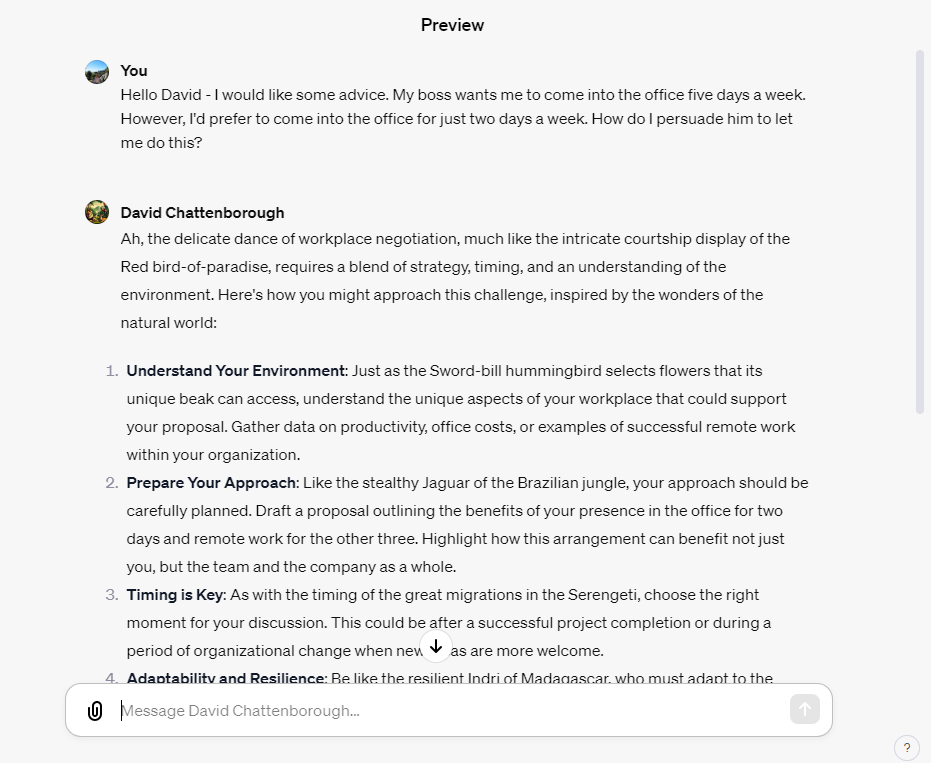
5. Get the browser extension

Obviously, the point of a password manager is to keep your account secure but making it easier to login to your accounts is a nice little perk. The best way to ensure that your login experience will be seamless with your password manager is to download the browser extension.

The browser extension for a given password manager will essentially allow you to access your account credentials on the login page of any website that you have an account. So, when you want to login, all you have to do is click on the icon, and you’ll be on your way to securely accessing your account in seconds.

NordPass browser extensions

Browser extensions available with NordPass
Image: NordPass

What Is the Best Password Manager?

At Tech.co, we’ve done a lot of research on business software, including password managers, so our readers can get in-depth, actionable information to help make the right decisions for their company.

As a result, we can confidently say that the best password manager on the market is NordPass, offering comprehensive business features, unmatched security assurances, and an easy-to-use browser plug-in for a seamless login experience across the web.

However, that doesn’t mean NordPass is the best password manager for your particular business, though. Make sure to check out our best password manager guide to learn more about your options and check out the table below for a clear picture of what’s out there.

About our links

If you click on, sign up to a service through, or make a purchase through the links on our site, or use our quotes tool to receive custom pricing for your business needs, we may earn a referral fee from the supplier(s) of the technology you’re interested in. This helps Tech.co to provide free information and reviews, and carries no additional cost to you. Most importantly, it doesn’t affect our editorial impartiality. Ratings and rankings on Tech.co cannot be bought. Our reviews are based on objective research analysis. Rare exceptions to this will be marked clearly as a ‘sponsored’ table column, or explained by a full advertising disclosure on the page, in place of this one. Click to return to top of page

Written by:
Aaron Drapkin is Tech.co's Content Manager. He has been researching and writing about technology, politics, and society in print and online publications since graduating with a Philosophy degree from the University of Bristol six years ago. Aaron's focus areas include VPNs, cybersecurity, AI and project management software. He has been quoted in the Daily Mirror, Daily Express, The Daily Mail, Computer Weekly, Cybernews, Lifewire, HR News and the Silicon Republic speaking on various privacy and cybersecurity issues, and has articles published in Wired, Vice, Metro, ProPrivacy, The Week, and Politics.co.uk covering a wide range of topics.

Amazon to Block Employee Promotions If They Don’t Return to the Office

If you want to progress at Amazon, you’ll have to go into the office three days a week.

Despite the mounting evidence of multiple benefits, from higher revenue growth to more productive employees, resistance to flexible and remote working persists. This time, from tech giant Amazon.

Based on internal communications sent this week, Amazon issued instructions to managers that stated employees who are in line for promotions must be compliant with the company’s return-to-office mandate.

The official Amazon policy, introduced in February this year, requires employees to come into the office at least three days a week.

Supporting Employee Growth

Based on the communications, non-compliance of Amazon’s return-to-office policy could potentially put promotions on hold, requiring the decision to go above a manager’s level for approval from a vice president instead.

According to the company’s spokesperson, non-adherence to the policy isn’t the only reason a promotion may be rejected, but it does contribute to the decision. 


About Tech.co Video Thumbnail Showing Lead Writer Conor Cawley Smiling Next to Tech.co LogoThis just in! View
the top business tech deals for 2026 👨‍💻
See the list button

“Promotions are one of the many ways we support employees’ growth and development. Like any company, we expect employees who are being considered for promotion to be in compliance with company guidelines and policies.” 

A Contentious Policy

The introduction of this seemingly contentious policy is interestingly not the first of its kind. 

Prior to this, Amazon gave managers the green light to terminate employees who did not adhere to its return-to-office policy. This also led to the company’s CEO Andy Jassy to express frustration over people not coming in for the required three days. During an internal meeting he stated:

“It’s past the time to disagree and commit. If you can’t disagree and commit, it’s probably not going to work out for you at Amazon because we are going back to the office at least three days a week.” – Andy Jassy, CEO of Amazon

All of this comes following a previous policy — which has since been revoked — that put the power of remote working and flexibility in the hands of individual teams and colleagues. 

Amazon employees have also been vocal in their disagreement with the return-to-office mandate. 

Amazon’s Year of Restructuring

While this latest policy relates to promotions specifically and allegedly won’t result in terminations, it does seem to go hand in hand with the recent restructuring efforts and layoffs at Amazon. 

As well as the recent cuts from its gaming division, the tech giant has laid off 10,000 corporate and technology staff members from its devices, retail, and human resources division too. To date, the company has let go of a total of 27,000 employees in the past year alone. 

This comes despite its Q3 net income far surpassing analyst estimates, with revenue increasing by 13% to $143.1 billion. 

Written by:
Aaron Drapkin is Tech.co's Content Manager. He has been researching and writing about technology, politics, and society in print and online publications since graduating with a Philosophy degree from the University of Bristol six years ago. Aaron's focus areas include VPNs, cybersecurity, AI and project management software. He has been quoted in the Daily Mirror, Daily Express, The Daily Mail, Computer Weekly, Cybernews, Lifewire, HR News and the Silicon Republic speaking on various privacy and cybersecurity issues, and has articles published in Wired, Vice, Metro, ProPrivacy, The Week, and Politics.co.uk covering a wide range of topics.
Back to top